
Delete your Clevra account
Delete your Clevra account in the phone app, on the web or by email, and see what is erased and what your company keeps.
Updated
On this page
Before you start
Clevra is the app a company uses to run its field work. Your Clevra account is the sign-in your company gave you. You can delete it yourself at any time, in the phone app or on the web. If you cannot use either, ask us by email.
What is erased: your sign-in, your email address, your phone number and your picture. You're signed out on every device.
What your company keeps: your name on the work you did, which includes its jobs, visits, time entries, invoices and payments. These are your company's business records. Your company keeps them for as long as it keeps its records in Clevra.
You cannot undo this. To work with your company again, ask an administrator for a new invitation.
Delete your account in the phone app
- Open the Clevra app and sign in.
- Open Settings.
- Select Delete your account.
- Read What happens.
- Select Delete my account.
- Select Delete my account again to confirm, or Keep my account to stop.
The app signs you out and says Your account was deleted.
Delete my account is not available until two things are true:
- Your phone is connected. Deleting your account needs a connection.
- The phone has no unsent work from you. The app tells you what is still on the phone. Select Send unsent work now to send it first.
Delete your account on the web
You do this on your own profile. You reach your profile from Manage Team, which administrators see. If you do not see Manage Team, use the phone app or ask us by email.
- Sign in to Clevra on the web.
- Select Manage Team, under Company in the menu.
- Select your own name in the list. Your profile opens.
- Go to Delete account at the bottom of the page.
- Select Delete account. Clevra asks Delete your account? and says what is erased and what your company keeps.
- Select Delete my account to confirm, or Keep my account to stop.
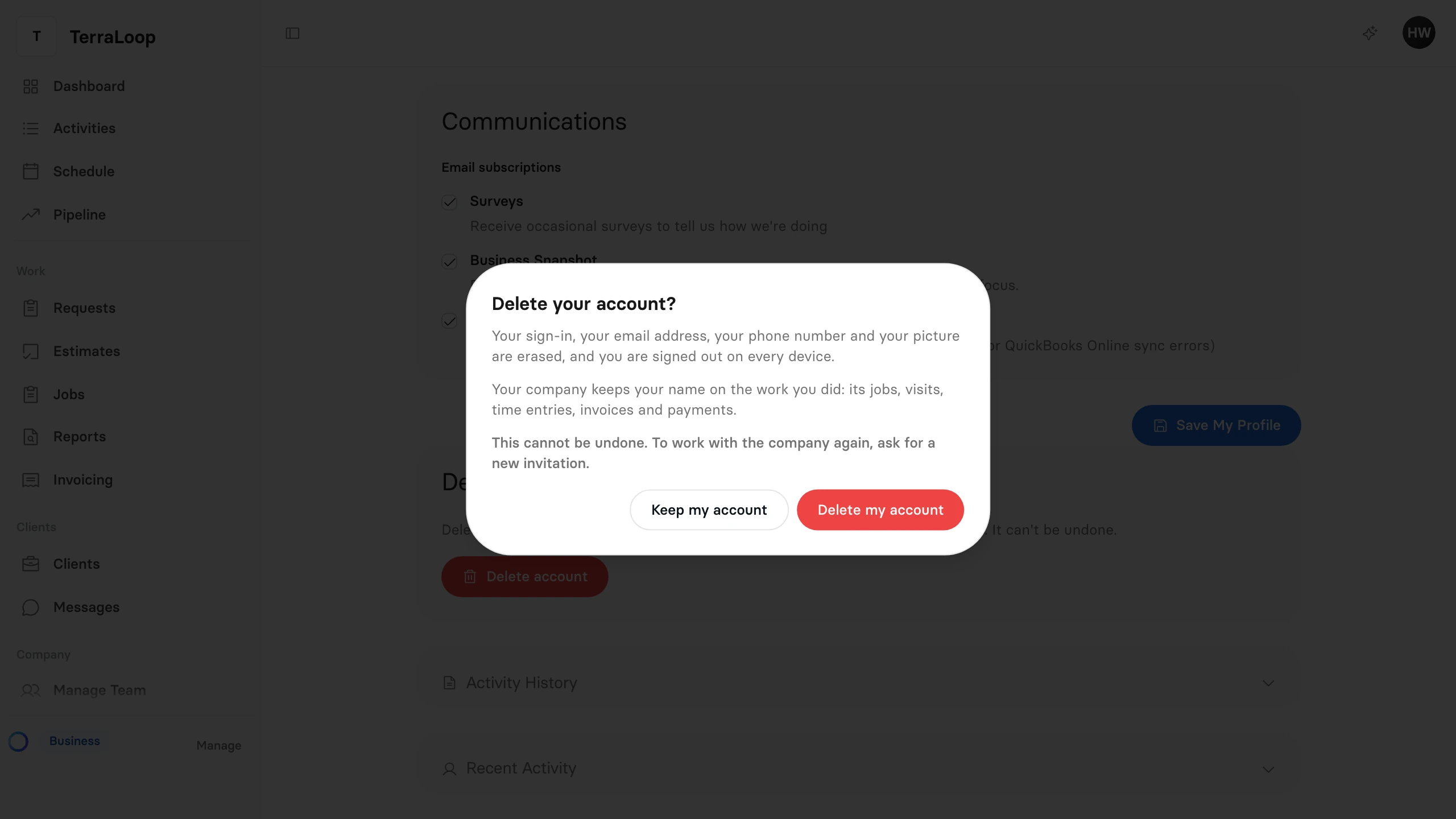
Clevra signs you out.
Ask us to delete your account by email
You do not need the app or a working sign-in for this.
- Write to support@clevra.ai from the email address of your Clevra account.
- Say that you want your Clevra account deleted, and name your company.
- We reply to that address and ask you to confirm. This is how we know the request comes from you.
We delete the account within 30 days of your confirmation. The result is the same as when you delete it yourself: the same details are erased, and your company keeps the same records.
If Clevra refuses
Clevra says Your account wasn't deleted and gives the reason:
- You're the only administrator. Your company would have nobody to manage it. Make another person an Org Admin on Manage Team, then try again.
- You're the billing owner. The account owner, marked Owner on Manage Team, cannot delete their account. Billing must pass to another administrator first. Write to support@clevra.ai for help with that.
- You tried too many times. Clevra allows three tries an hour. Wait an hour, then try again.
- Clevra could not finish the deletion right now. Nothing was changed and your account is as it was. Try again later. If it keeps happening, ask us by email, as described above.
After your account is deleted
- You get an email at the address your account had, saying that your access to the company has ended. It is the last message Clevra sends to that address about this account.
- Your company's administrators get an email that tells them.
- Work that was assigned to you goes back to your company to assign to someone else.
- If you belong to more than one company in Clevra, only the account in this company is deleted.