
Add a team member
Invite someone to your Clevra account and choose the role that decides what they can see and change.
Updated
On this page
Before you start
Only an Org Admin can invite people. If you do not see Manage Team in the menu, ask the owner of your Clevra account.
Each person signs in with their own email address. An address already registered to a Clevra account in another company cannot join your team; use a different address for them.
Invite the person
- Open Manage Team.
- Select Invite user.
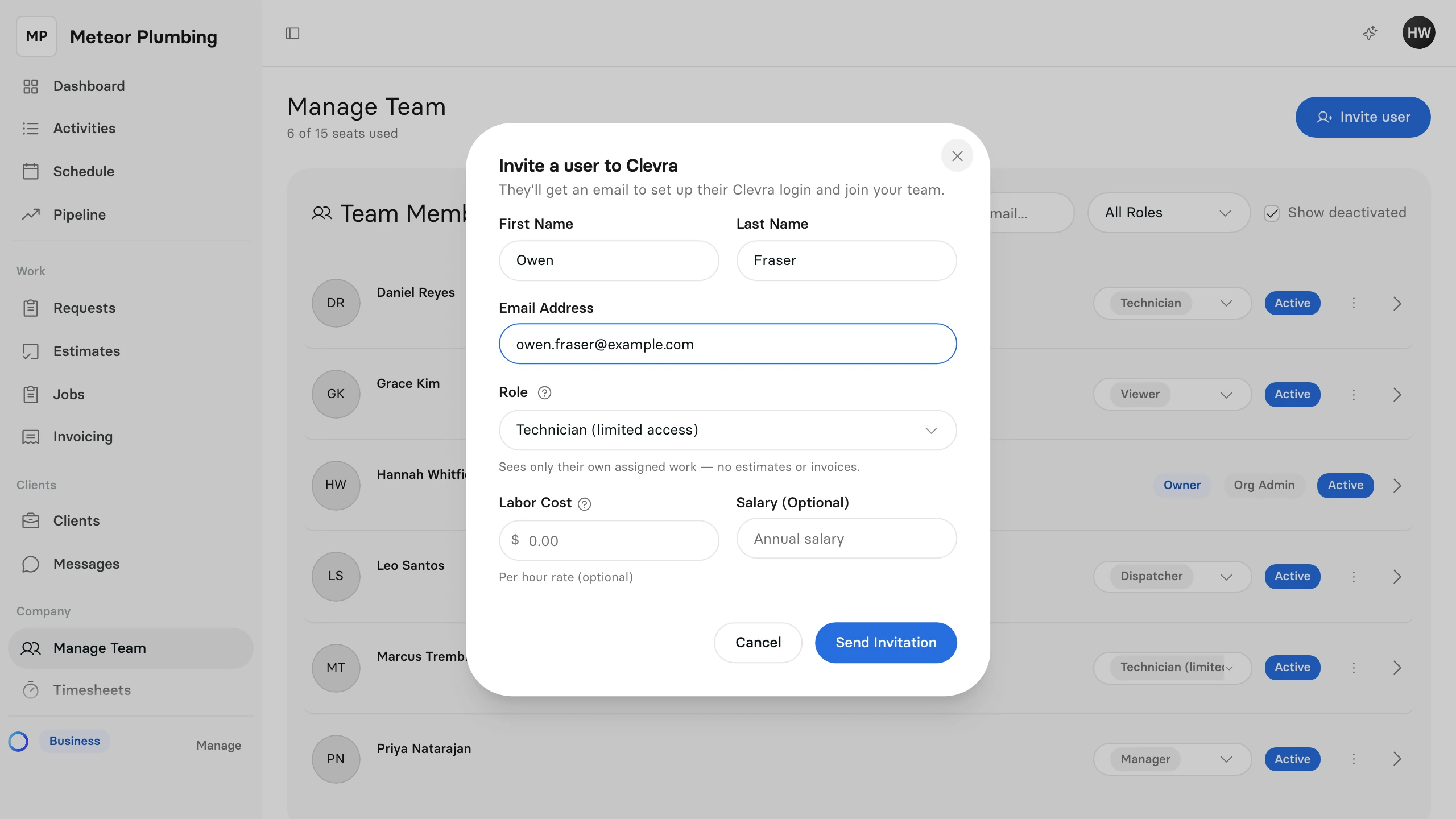
- Enter their First Name, Last Name and Email Address. All three are required.
Choose a role
The role decides what the person can see and change in Clevra. A new invitation starts at the role with the least access, Technician (limited access).
- Open Role.
- Pick the role that fits the person's job. Each role says in one line what it allows.
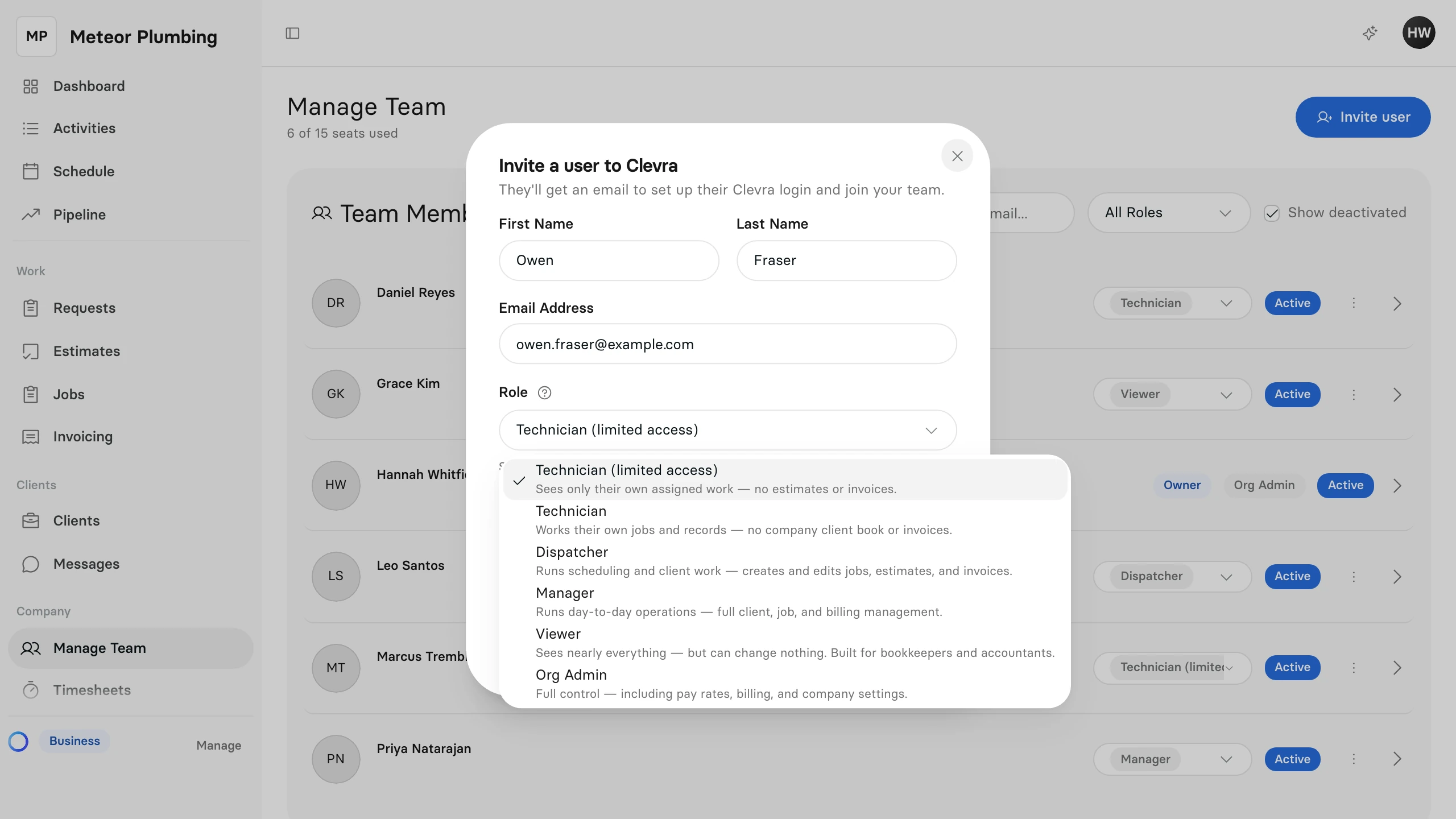
| Role | What it allows |
|---|---|
| Technician (limited access) | Sees only their own assigned work — no estimates or invoices. |
| Technician | Works their own jobs and records — no company client book or invoices. |
| Dispatcher | Runs scheduling and client work — creates and edits jobs, estimates, and invoices. |
| Manager | Runs day-to-day operations — full client, job, and billing management. |
| Viewer | Sees nearly everything — but can change nothing. Built for bookkeepers and accountants. |
| Org Admin | Full control — including pay rates, billing, and company settings. |
Send the invitation
- Enter a Labor Cost if you track what an hour of their work costs you. It is optional, and so is Salary (Optional).
- Select Send Invitation.
- Read what the role will let them see and change, then select Send invitation. To pick another role first, select Go back.
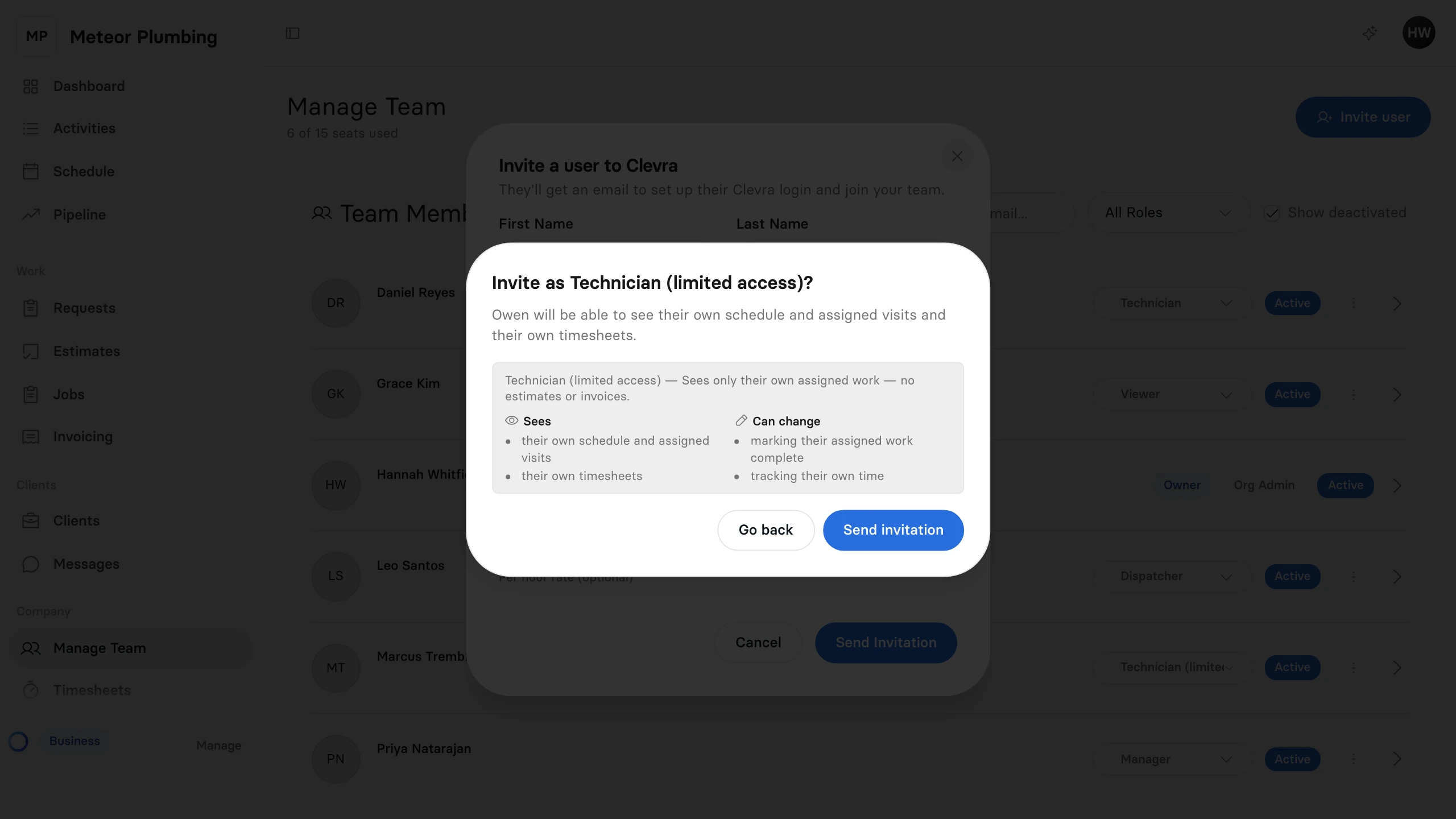
The person gets an email with a link to set up their Clevra login and join your team. The link works for 14 days.
Follow up on an invitation
Until the person accepts, they are listed under Pending Invitations, marked Invitation Sent. Select the three dots at the end of their row to:
- Resend Invitation: send a fresh link that works for another 14 days.
- Revoke Invitation: cancel the invitation.
If your plan includes a set number of seats, Manage Team shows how many are in use. A pending invitation takes a seat, just like a member.
Change someone's role later
On Manage Team, choose a new role in the list on the person's row. You cannot change your own role, and the company always keeps at least one Org Admin.