
Schedule a visit
Book a visit on a job, put your team on it, and find or move it on the Schedule.
Updated
On this page
Before you start
A visit belongs to a job, so the job must exist first. You can book its first visits while you create it; see Create a job.
You also need permission to schedule work. If you do not see Add Visit on a job, ask the owner of your Clevra account.
Add a visit to a job
- Open Jobs.
- Select the job.
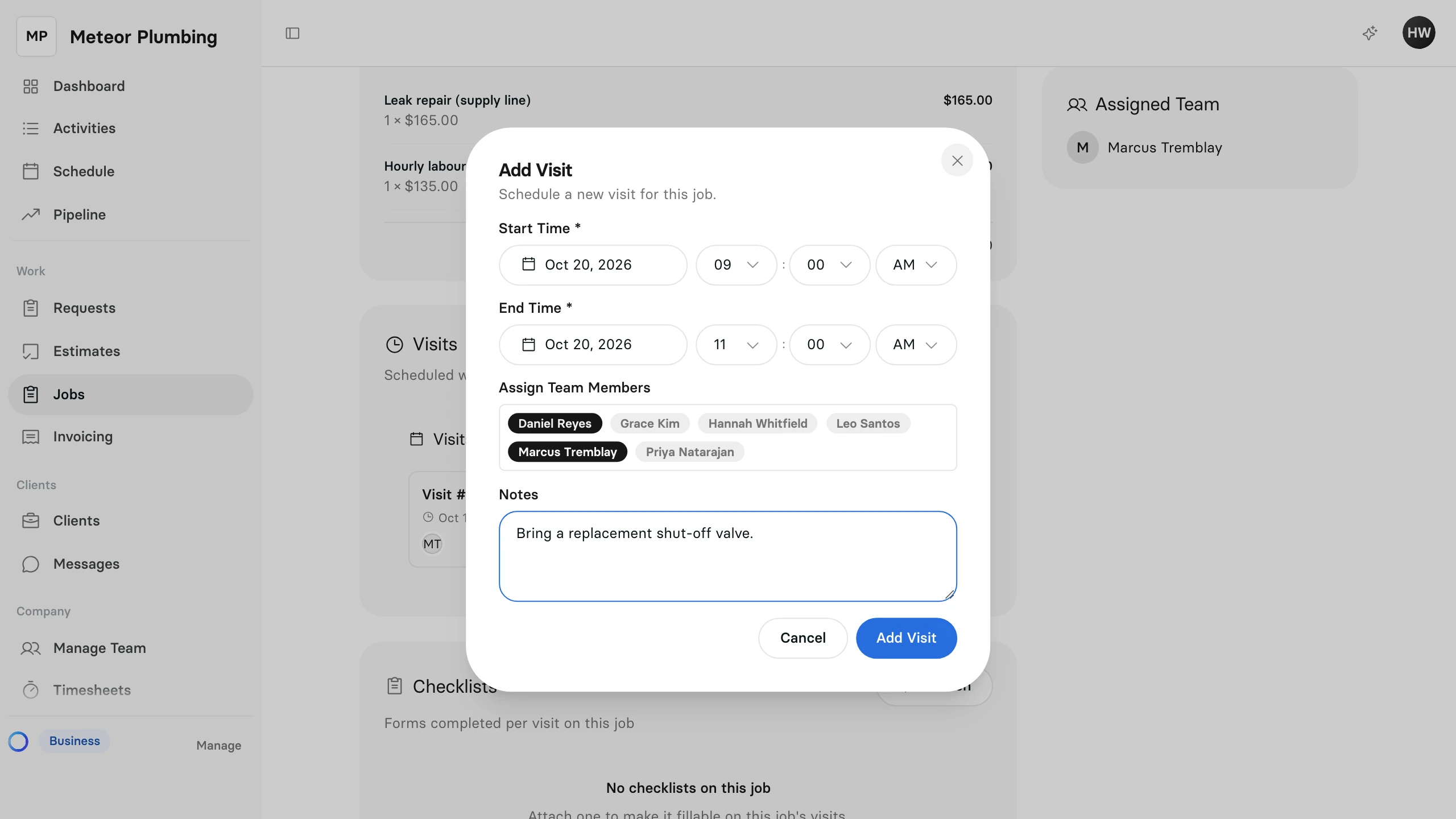
- Under Visits, select Add Visit.
- Set the Start Time and the End Time.
- Under Assign Team Members, select each person who will do the work. The people already on the job start selected.
- Add Notes for the crew if they need any.
- Select Add Visit.
The visit joins the job's list as the next visit number.
Find it on the Schedule
- Open Schedule. It opens on the current month.
- Select Week or Day to see the times. In Day, each team member has a column of their own.
- Use the arrows and Today to move between dates.
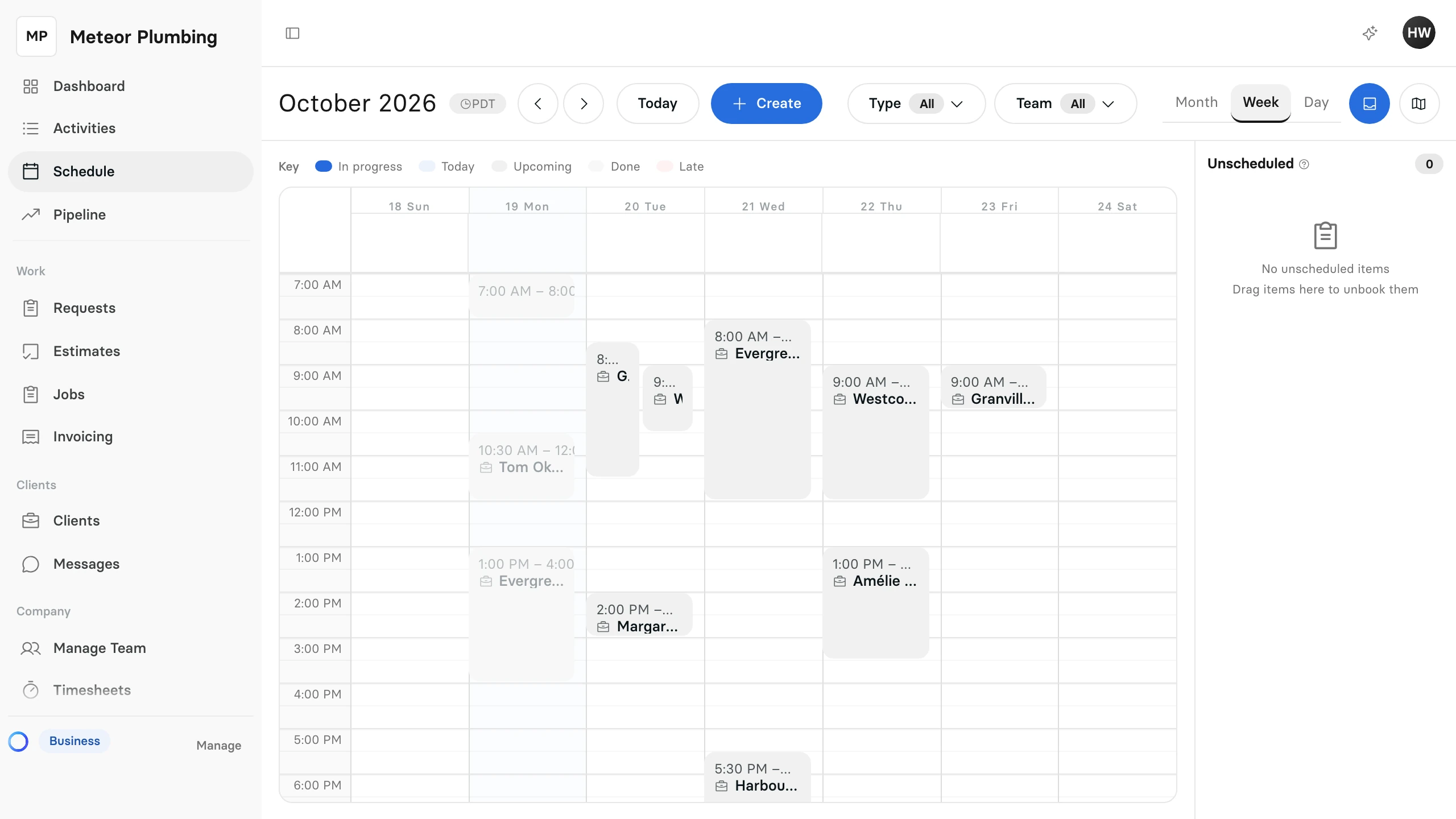
Use Team to see one person's work, or Unassigned for work nobody is on yet. Type shows or hides each kind of work.
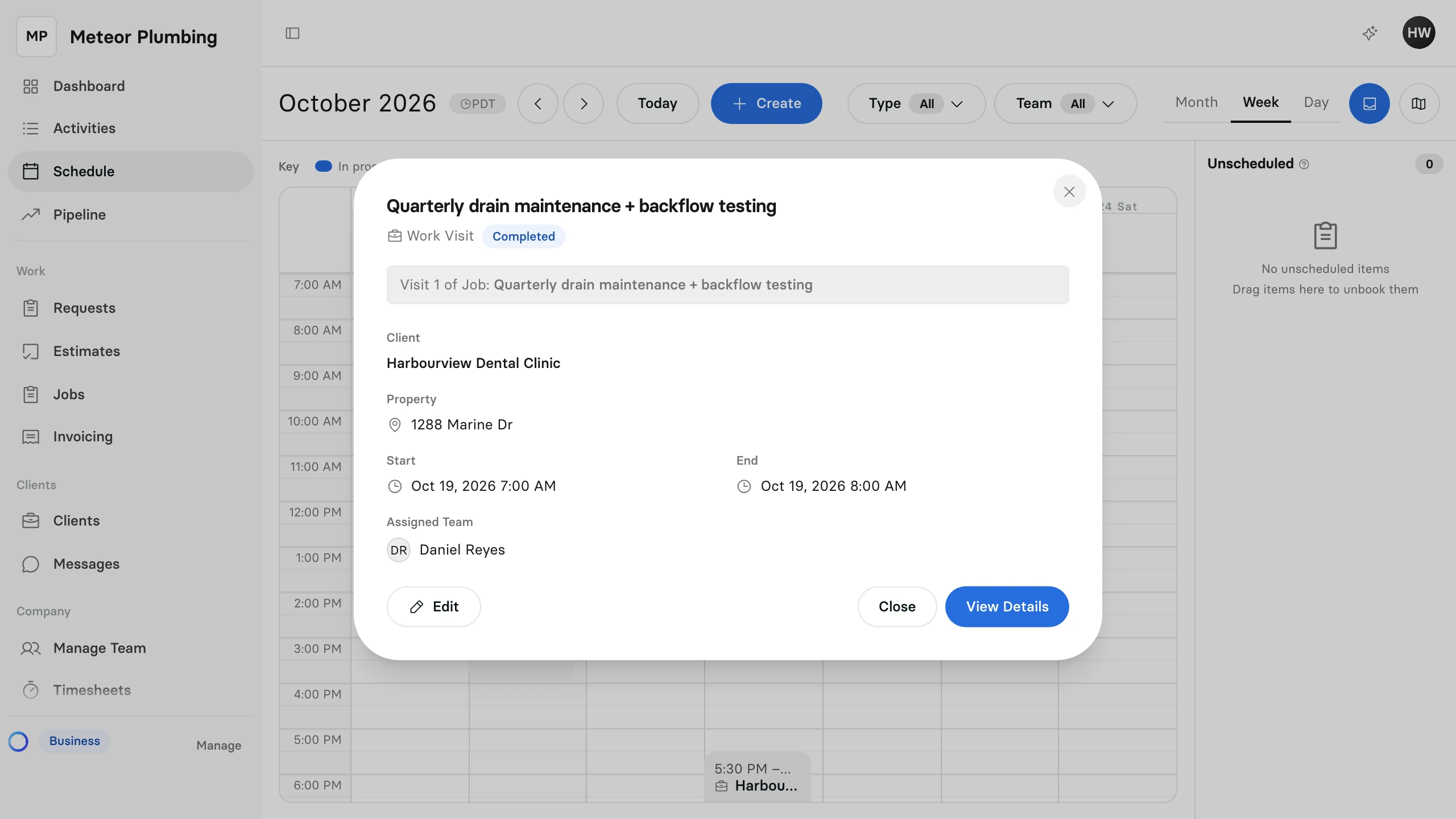
Select a visit to see its Client, Property, times and Assigned Team. Select View Details to open its job.
Move a visit
On a computer, you can change the schedule by dragging. A visit that is already finished stays where it is.
- Drag a visit to a new day or time to move it.
- Drag the bottom edge of a visit in Week or Day to make it longer or shorter.
- In Day, drag a visit into another person's column to give it to them. The message that confirms it offers Undo.
If someone on the visit already has work at the new time, Clevra shows Schedule Conflict Detected. Select Schedule Anyway to keep the move, or Cancel.
The Unscheduled list beside the calendar holds visits that have no time yet. Drag one onto the calendar to book it, or drag a booked visit onto the list to take it off the calendar.