
Create and send an invoice
Bill a client for finished work, starting from the job or from scratch, and email them the invoice.
Updated
On this page
Before you start
An invoice is written for a client, so the client must exist first. See Add a client.
You also need permission to manage invoices. If you do not see the New Invoice button on Invoicing, ask the owner of your Clevra account.
Start from the job
When the work was a job in Clevra, start the invoice from the job, so you do not type the work in twice.
- Open the job.
- Select the ⋯ menu at the top of the job.
- Select Generate Invoice.
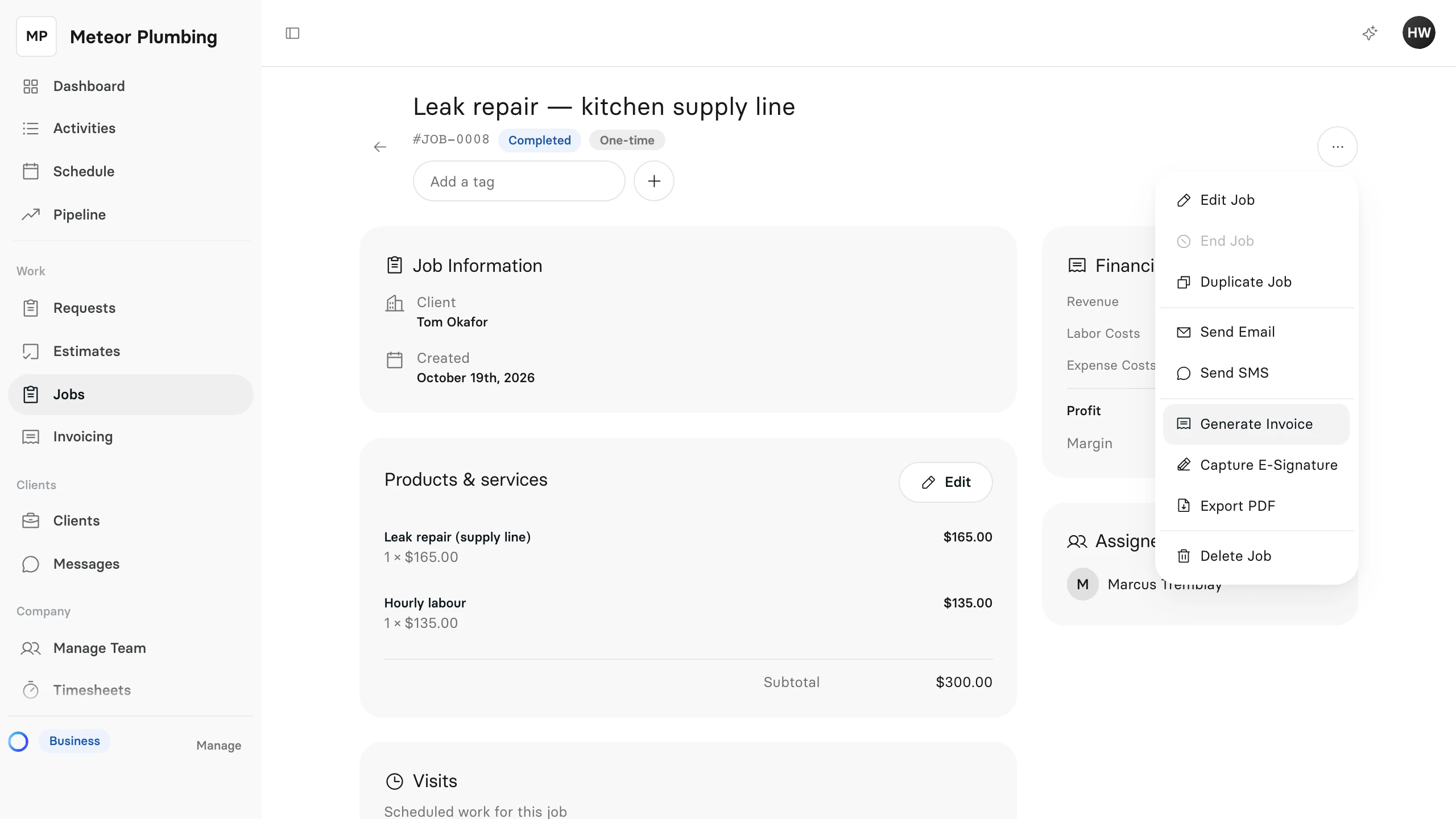
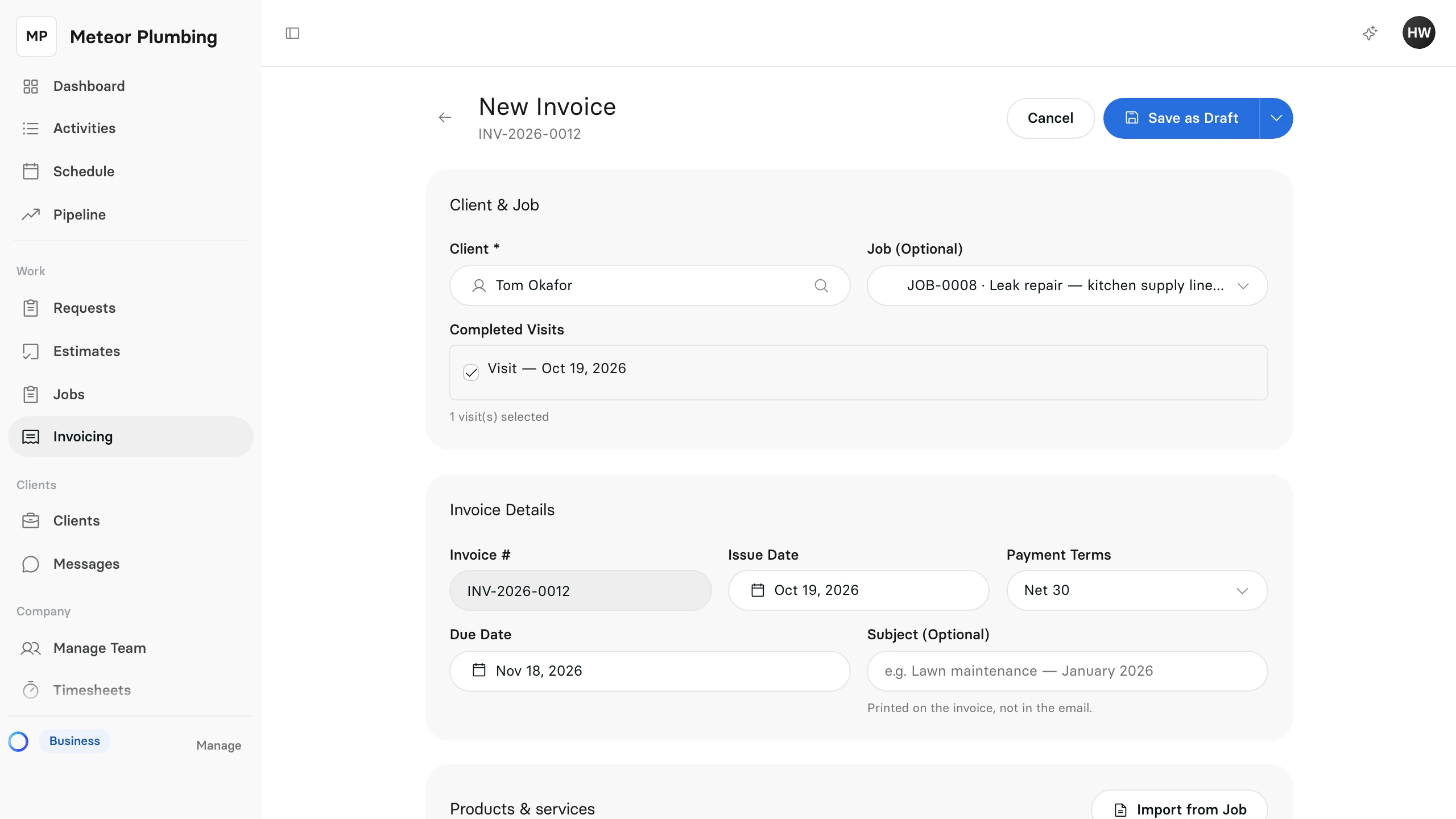
The new invoice starts with the job's client, its products and services, and its discount. If the job has finished visits that are not billed yet, they are listed under Completed Visits and ticked; untick any you are not billing on this invoice.
If the job was invoiced before, Clevra names that invoice above the lines. Remove anything you have already billed.
Start from Invoicing
- Open Invoicing.
- Select New Invoice.
- Under Client & Job, choose the Client.
- To bill a job, choose it in Job (Optional).
Set the dates
Under Invoice Details, the Invoice # is filled in for you and the Issue Date starts at today.
Payment Terms sets the Due Date from the issue date: Due on Receipt, Net 15, Net 30 or Net 60. New invoices start at Net 30. To pick a different day, choose Custom and set the Due Date yourself.
Use Subject (Optional) for a line that describes the work. It is printed on the invoice, not in the email.
Add what you are billing
Under Products & services, each line is one thing you are charging for.
- In Item, type the service or product. As you type, Clevra lists your saved services; pick one to fill in the line.
- Set the Qty and the Unit, and enter the Unit price. Clevra works out the line's Total.
- Select Add item for another line.
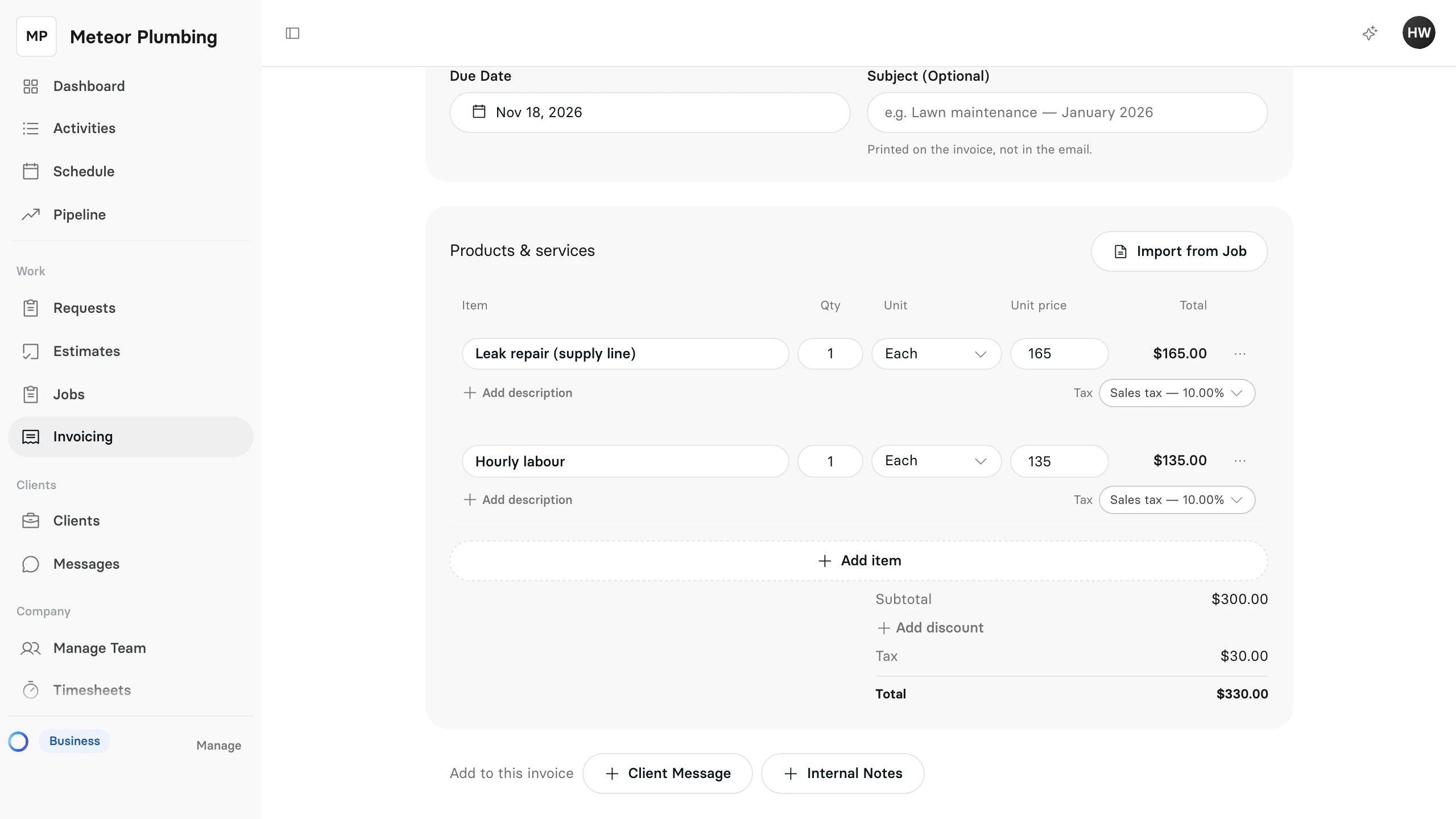
Each line has its own Tax. The Subtotal, Tax and Total update as you go, and once a line has a price, Add discount takes a percentage or an amount off.
When the invoice is for a job, Import from Job adds the job's tracked time and expenses as lines. Tick Billable time or Expenditures, and untick Line items (Products / Services) if the job's lines are already on the invoice, then select Import.
Below the lines, under Add to this invoice, Client Message adds a message printed on the invoice, and Internal Notes adds notes only your team sees.
Save and send it
- Select Save as Draft to finish it later, or open the arrow next to it and select Save & Send.
- In Send Invoice, check the address under To. It comes from the client record.
- Add a Note in the email (optional) if you have something to say.
- Read What your customer will see, then select Send Invoice.
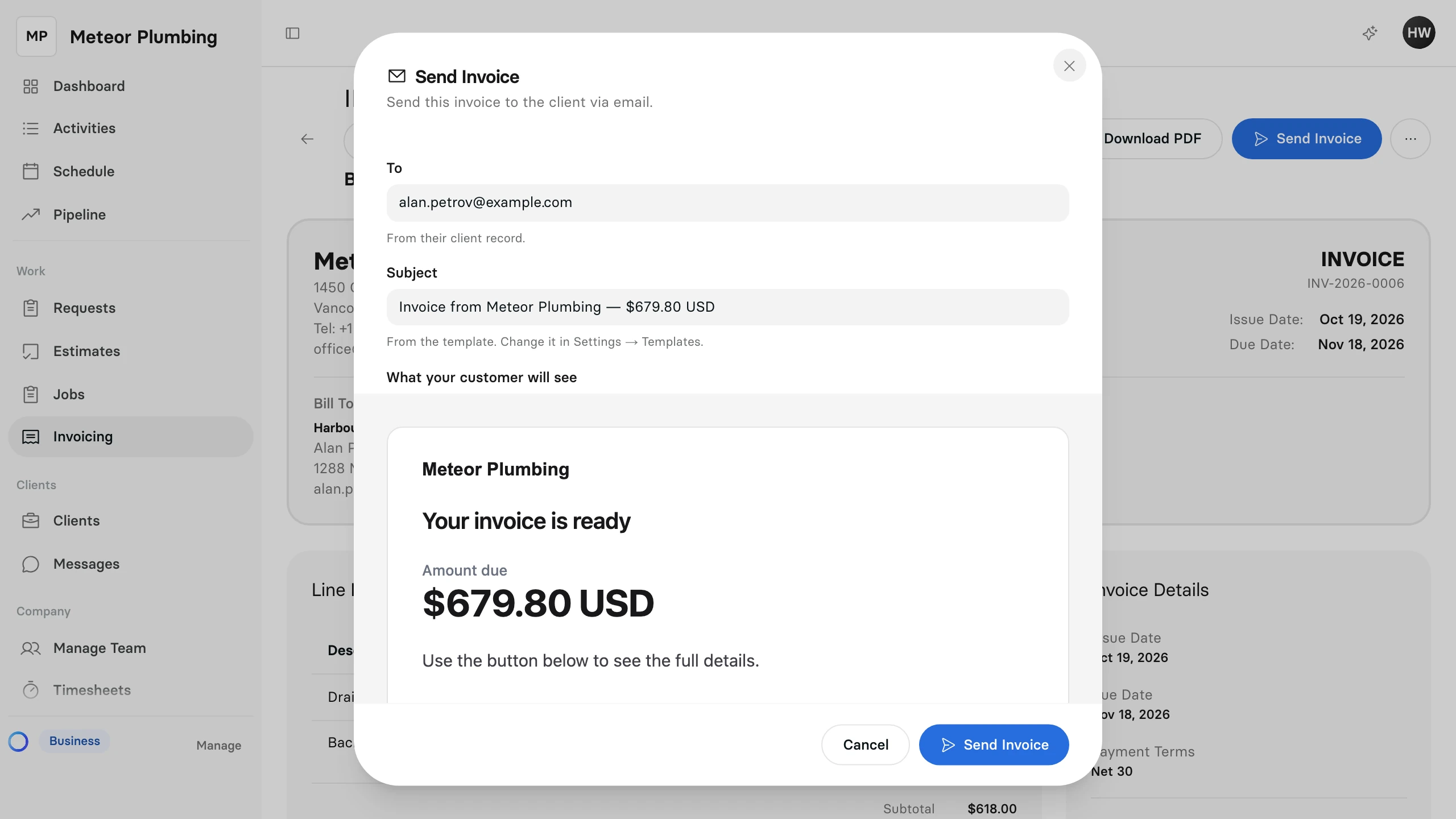
Your client gets an email with a link that opens the invoice. To send a draft later, open it and select Send Invoice.
Follow it until it is paid
The status next to the invoice number tells you where it stands:
| Status | What it means |
|---|---|
| Draft | Saved, not sent yet. |
| Sent | Emailed to the client. |
| Viewed | The client has opened it. |
| Partially Paid | Some of it is paid; the rest is still owed. |
| Paid | Nothing is owed. |
| Overdue | It is past its due date and still owed. |
To nudge a client, open the ⋯ menu on the invoice and select Send Reminder. A reminder can go out once every 24 hours.
Once an invoice is sent, its lines, totals, client and dates are locked. While it is Sent or Viewed, Edit Invoice in the ⋯ menu still changes the subject and the notes.
When the client pays, record the payment.