
Create a job
Set up a job for a client with its first visit, the team who will do it and what you will charge.
Updated
On this page
Before you start
A job is done for a client, so the client must exist first. See Add a client.
You also need permission to create jobs. If you do not see the New Job button, ask the owner of your Clevra account.
Start the job
- Open Jobs.
- Select New Job.
- Under Client & property, choose the Client.
- Choose the Property where the work is. A client with one property has it filled in already.
- Under Job details, enter a Title. The client and the title are the only details Clevra needs.
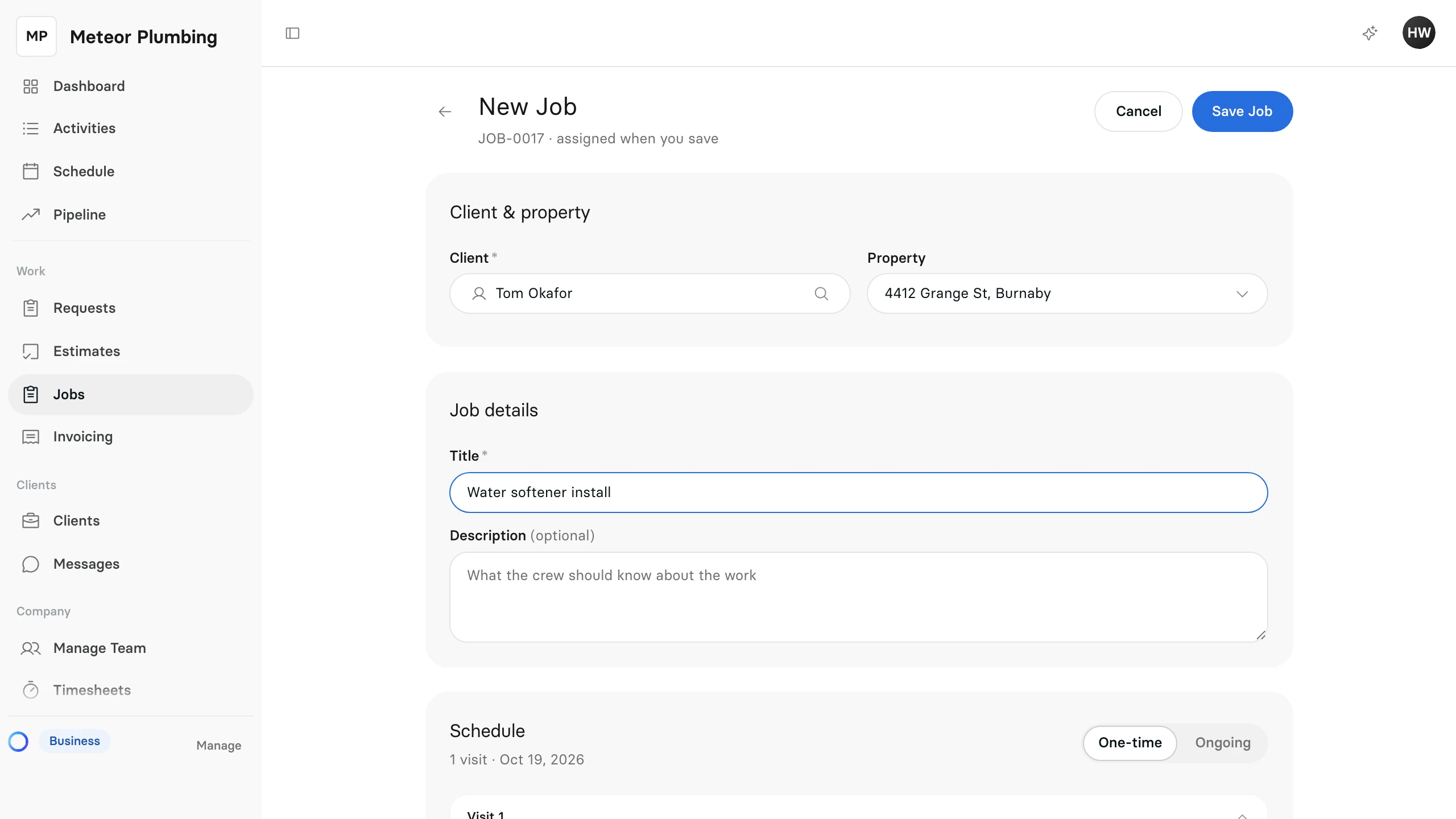
Add a Description if the crew should know more about the work. The job number is assigned when you save.
Book the first visit
A visit is a time your team is on site. Under Schedule, choose One-time for work done once.
- Pick the Date. It starts on today, and a day already past cannot be picked.
- Under Time, choose when the visit starts and when it ends. Tick Any time that day if there is no arrival window.
- Under Team, select Assign team members and pick each person who will do the work.
- Select Done.
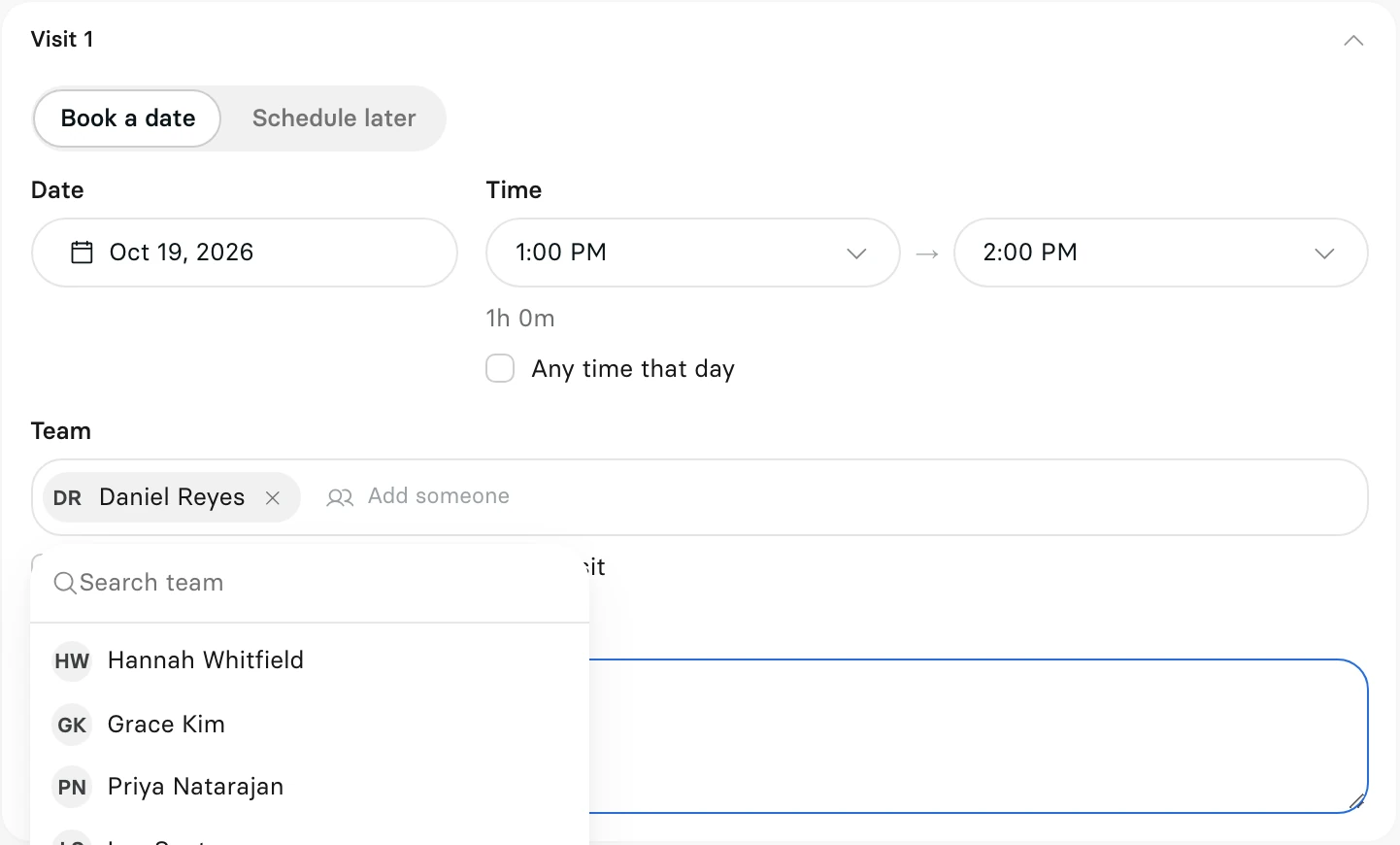
Add Visit instructions for anything the crew needs on the day, such as a gate code. Select Add another visit for work that takes more than one visit.
Not ready to book a time? Select Schedule later. The visit waits in the Unscheduled list on the Schedule page, and you can book it from there. See Schedule a visit.
Work that repeats
For work that comes back on a regular pattern, choose Ongoing instead of One-time.
- Set up the First visit: the day it Starts on, its time and its team.
- Under Repeats, choose the Frequency.
- Under Ends, choose After a number of visits or On a date.
Below the pattern, Clevra shows how many visits it makes and the dates of the first and last.
Add what you will charge
Under Products & services, each line is one thing you are charging for.
- In Item, type the service or product. As you type, Clevra lists your saved services; pick one to fill in the line.
- For something you have not saved, choose Add “…” as a new service to keep it for next time, or Use “…” on this job only.
- Set the Qty and the Unit, and enter the Unit price. Clevra works out the line's Total.
- Select Add item for another line.
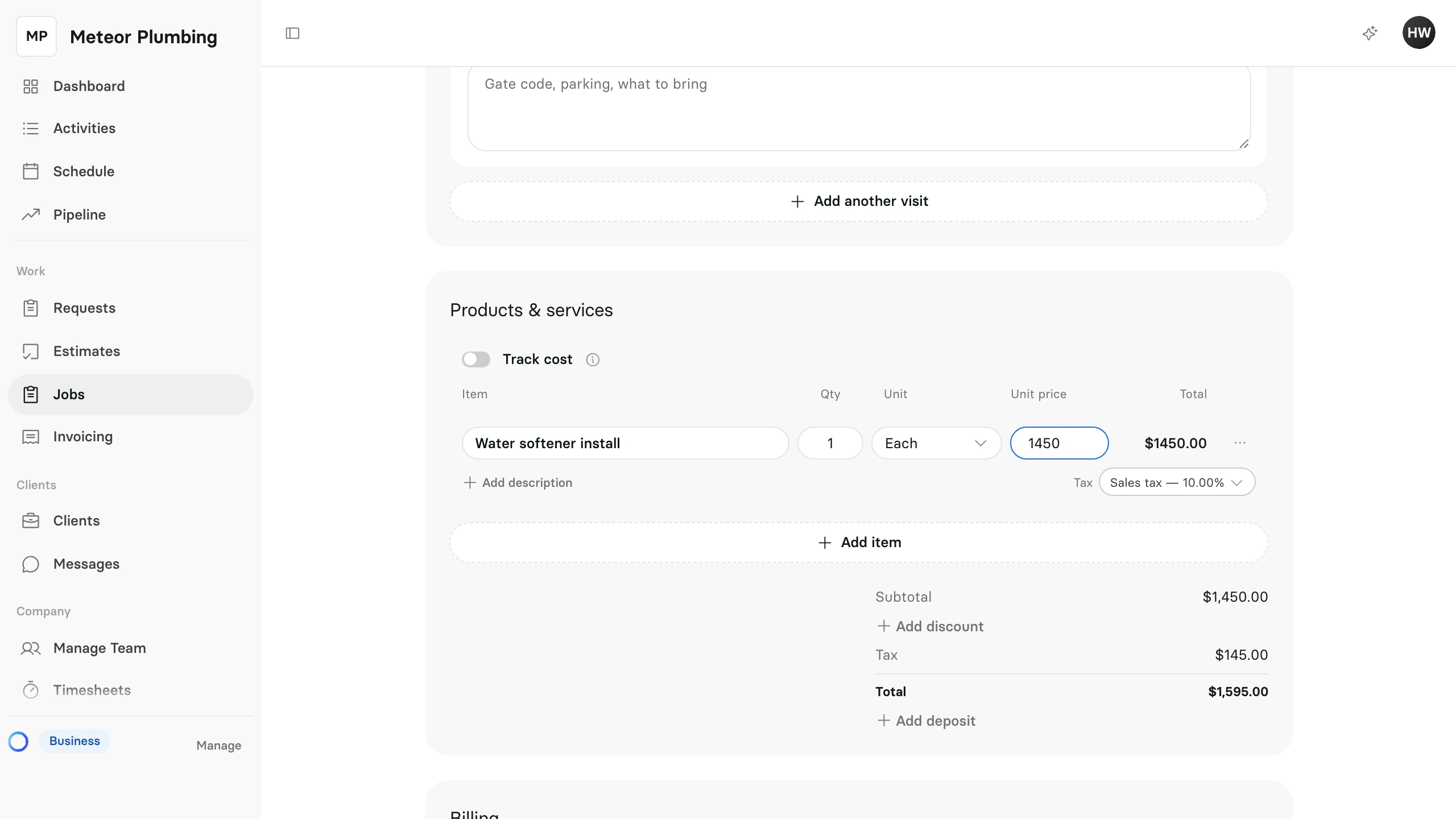
The Subtotal, Tax and Total update as you go. A line you leave completely empty is left out when you save.
Save it
Write anything for your team only under Internal notes; your client never sees them.
Select Save Job. Clevra opens the new job, with its visits under Visits.