
Turn an approved estimate into a job
When a client approves an estimate, Clevra makes the job for you; book its first visit to put your team on it.
Updated
On this page
Before you start
The estimate must be Approved, by the client from the email or by you on the estimate's page. See Send an estimate and get it approved.
Booking the visit needs permission to manage jobs. If Clevra will not save your changes, ask the owner of your Clevra account.
Clevra makes the job for you
The moment an estimate is approved, Clevra creates its job. Nothing needs copying across: the job has the same client, property and line items, with the same prices, units and costs.
The job waits as Unscheduled until you book its first visit, and the estimate stays Approved until then. If the client was still a Lead, they become a Customer.
Schedule the job
-
Open Estimates and select the approved estimate.
-
Select Schedule job.
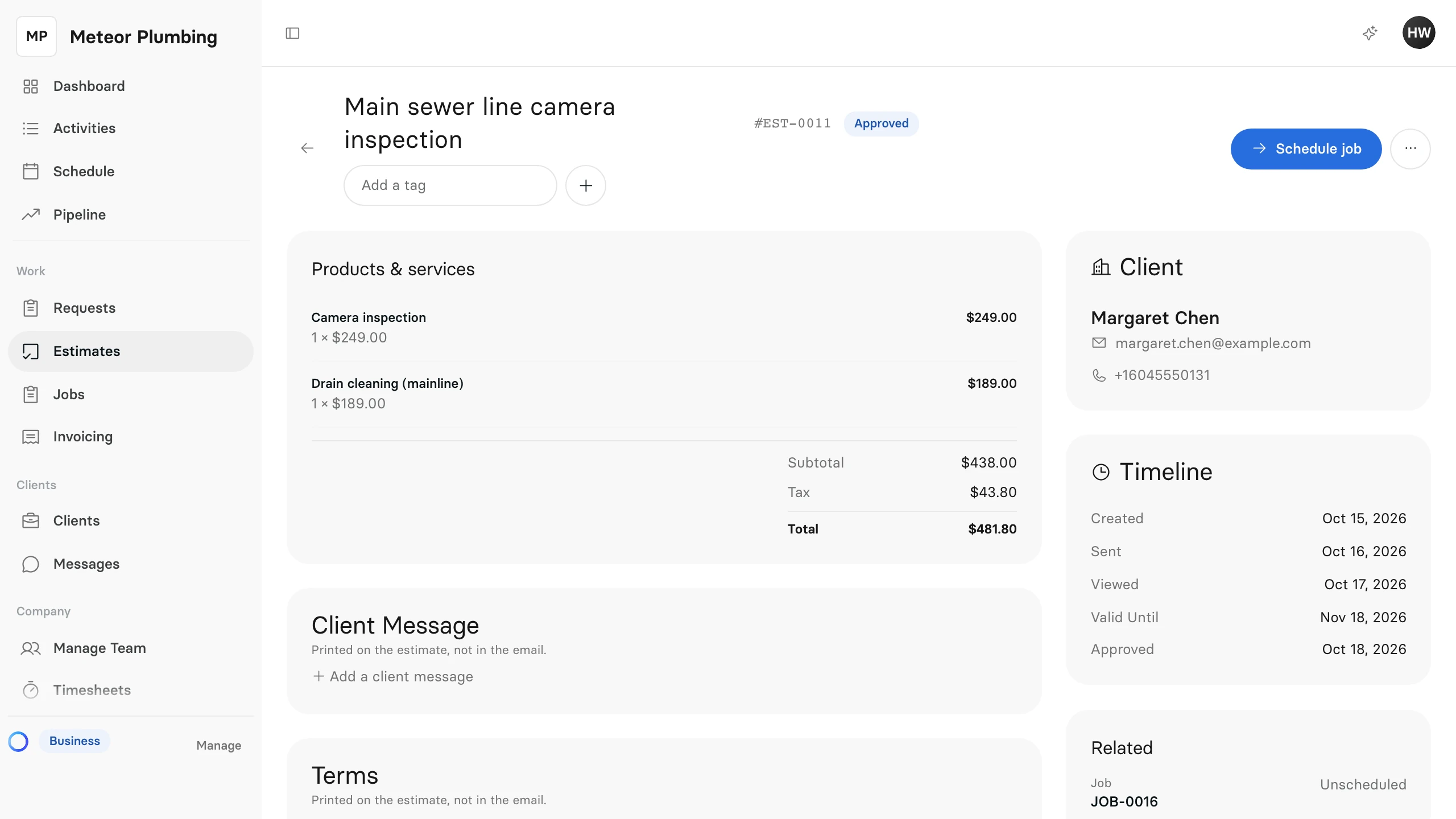
-
The job's Edit Job page opens at Schedule, with Visit 1 ready to book.
-
With Book a date selected, pick the Date and the Time, or tick Any time that day.
-
Under Team, select Assign team members and choose who does the work. Select Done.
-
Select Save Changes.
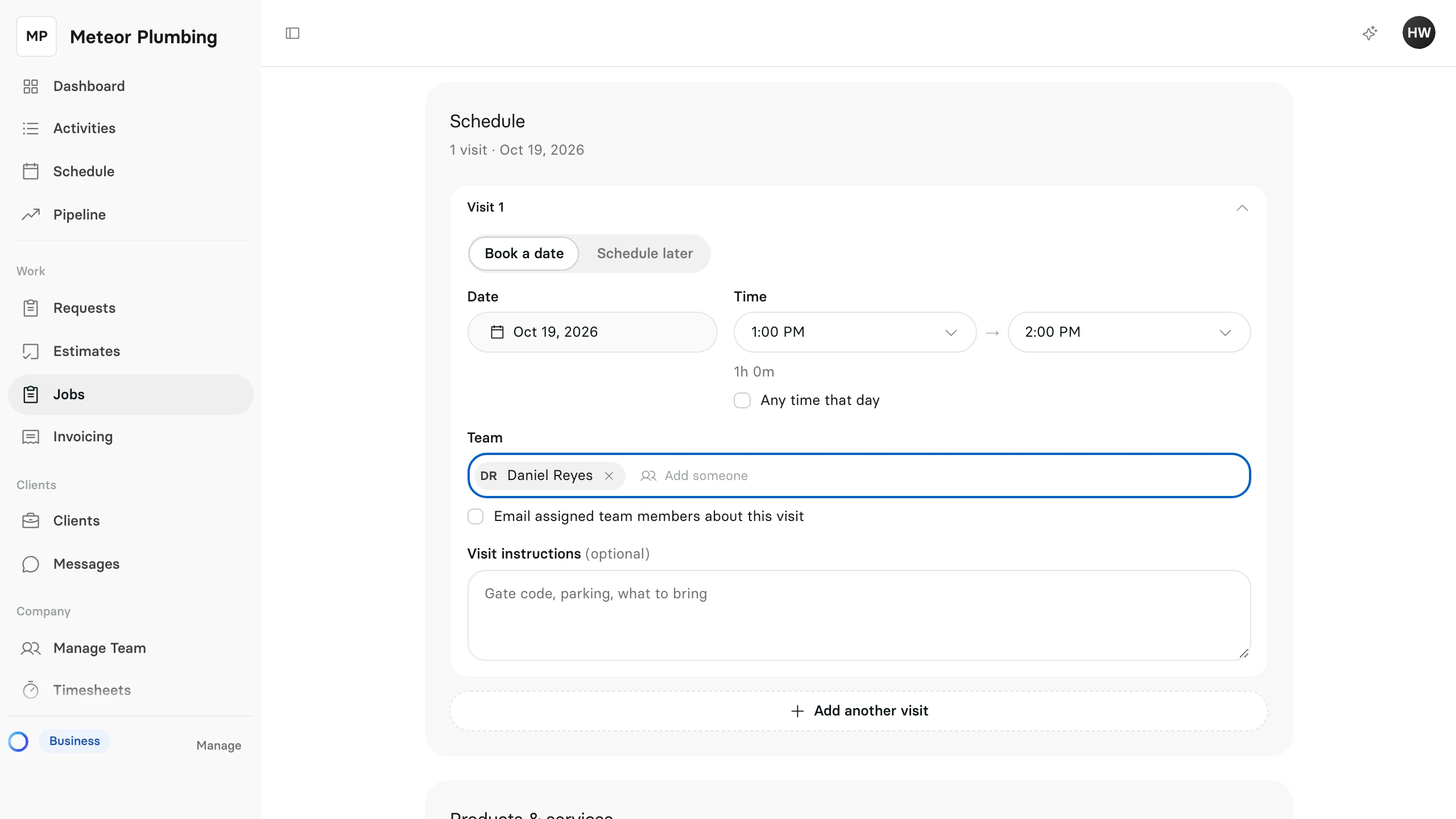
Add a gate code or what to bring under Visit instructions.
The ⋯ menu on an approved estimate's row in the Estimates list also has Schedule job.
After the first visit is booked
The estimate now shows Converted, and View job takes you to its job. In the Estimates list, the Job column shows the job's number.
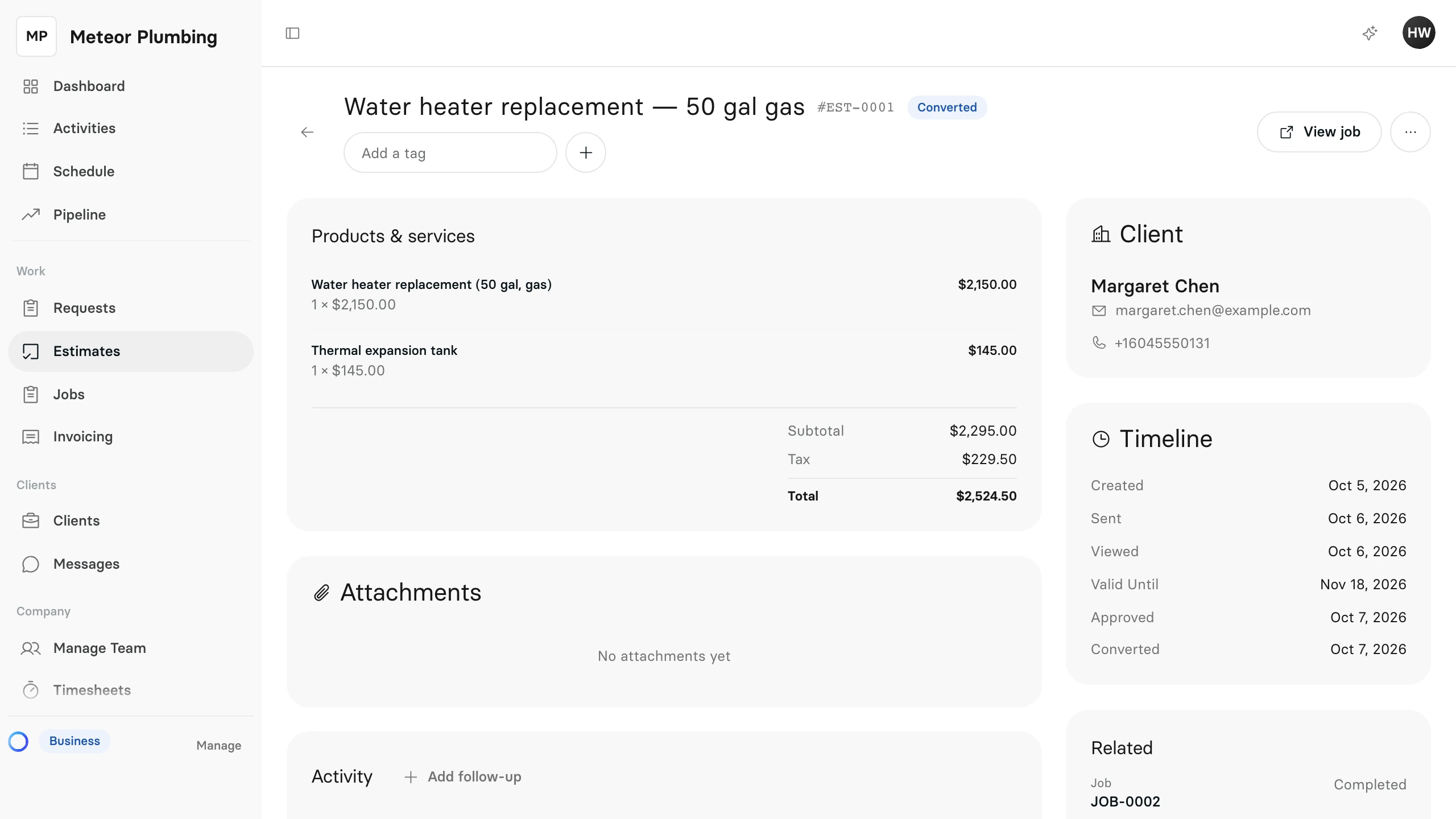
From here the work is the job's: see Schedule a visit to add more visits, and Create and send an invoice when the work is done.