Send an estimate and get it approved
Email an estimate to your client, follow its status, and record their answer when they approve or decline.
Updated
On this page
Before you start
The estimate goes to the email address on the client's record, so the client needs one. See Add a client.
You also need permission to manage estimates. If you do not see the Send to Client button, ask the owner of your Clevra account.
Send it
-
Open Estimates and select the estimate.
-
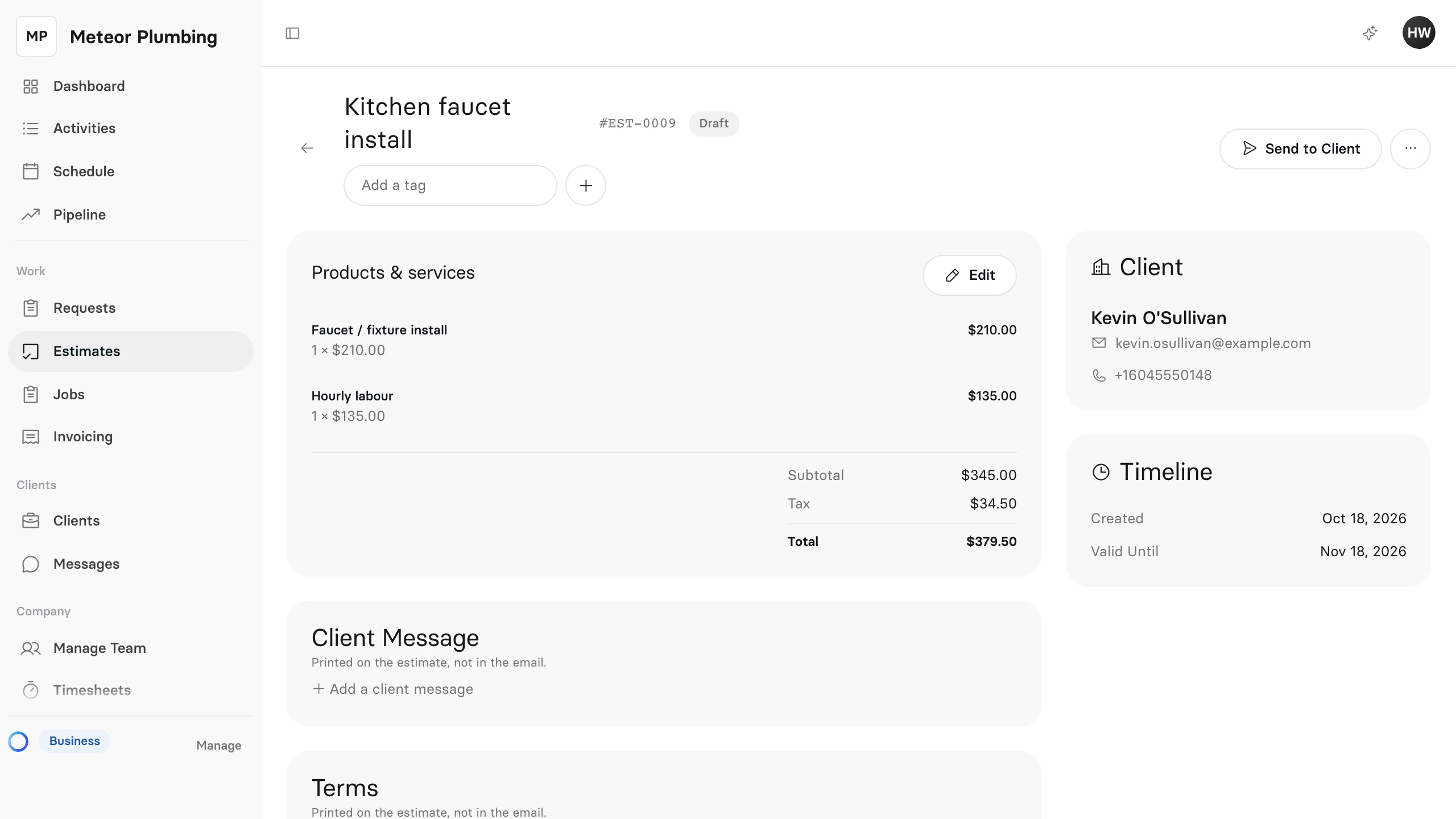
Select Send to Client. On an estimate you have sent before, the button says Re-send to Client.
-
Check the window. To is the email address from the client's record, and What your customer will see shows the email exactly as it will arrive.
-
Add a Note in the email (optional) if you want to say more.
-
Select Send Email.
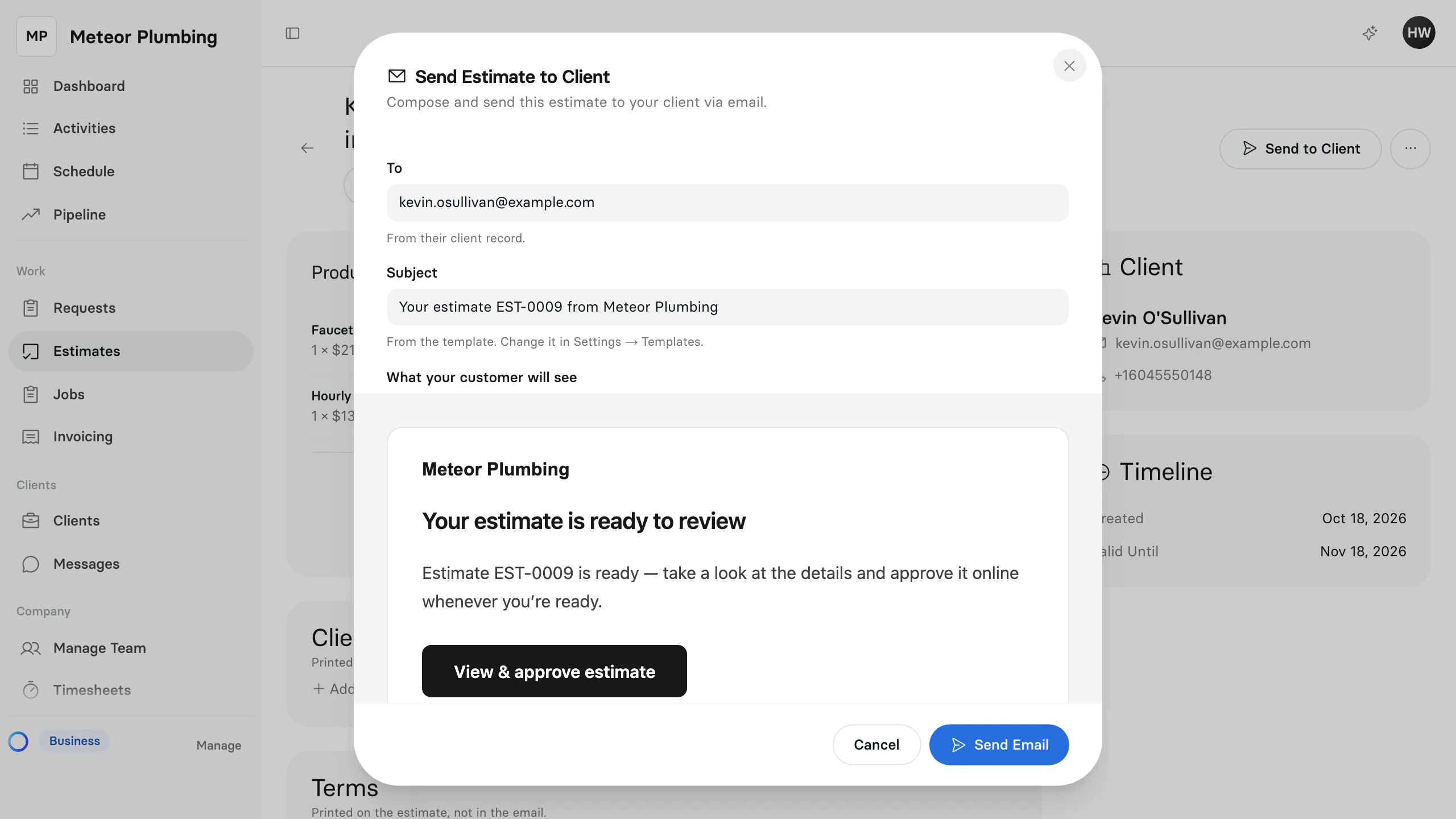
You can add a note only when the client agreed to non-essential emails on their client record. The estimate sends either way.
What your client does
The email has a link to the estimate. From there, the client can:
- Select Approve Estimate, sign, enter their Full Name and accept the terms. Clevra emails them a 6-digit code to confirm it is them.
- Select Decline.
Clients can approve for up to a week after the estimate's expiry date. After that, send it again with a new date.
Follow its status
Each estimate shows where it stands, on its page and in the Estimates list.
| Status | What it means |
|---|---|
| Draft | Not sent yet. |
| Pending | Sent, waiting for the client's answer. |
| Viewed | The client has opened it. |
| Changes Requested | The client asked for changes. Edit the estimate and send it again. |
| Approved | The client said yes. Clevra has made the job; see Turn an approved estimate into a job. |
| Rejected | The client declined it, or you did. |
| Expired | No answer for more than a week after its expiry date. |
| Converted | Its job has a visit booked. |
To send an Expired estimate again, select Re-send to Client: the window asks for a new Valid until date.
Record the answer yourself
When the client answers by phone or in person, record it on the estimate's page.
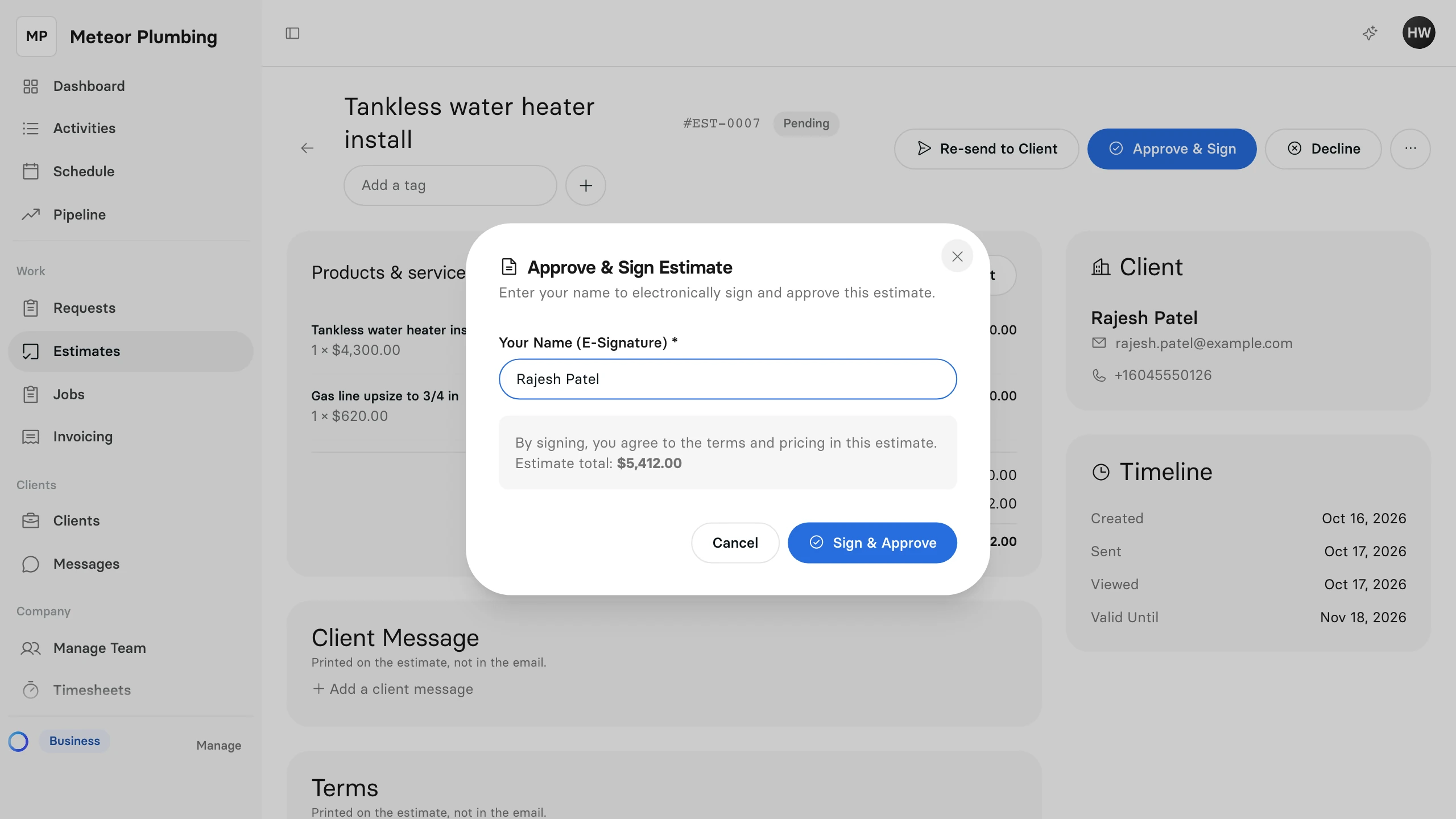
- Select Approve & Sign to have them sign on your screen: they type their name under Your Name (E-Signature), then select Sign & Approve.
- When they said yes but cannot sign, open the ⋯ menu and select Mark as Approved.
- When they said no, select Decline and give a Reason.