
Update your company details
Keep your company's name, contact details, address, time zone, business hours and logo up to date.
Updated
On this page
Before you start
Only an Org Admin can change the company details. If you do not see Company details in Settings, ask the owner of your Clevra account.
Open your company details
- Select your picture or initials in the top-right corner.
- Select Settings.
- Under Company, select Company details.
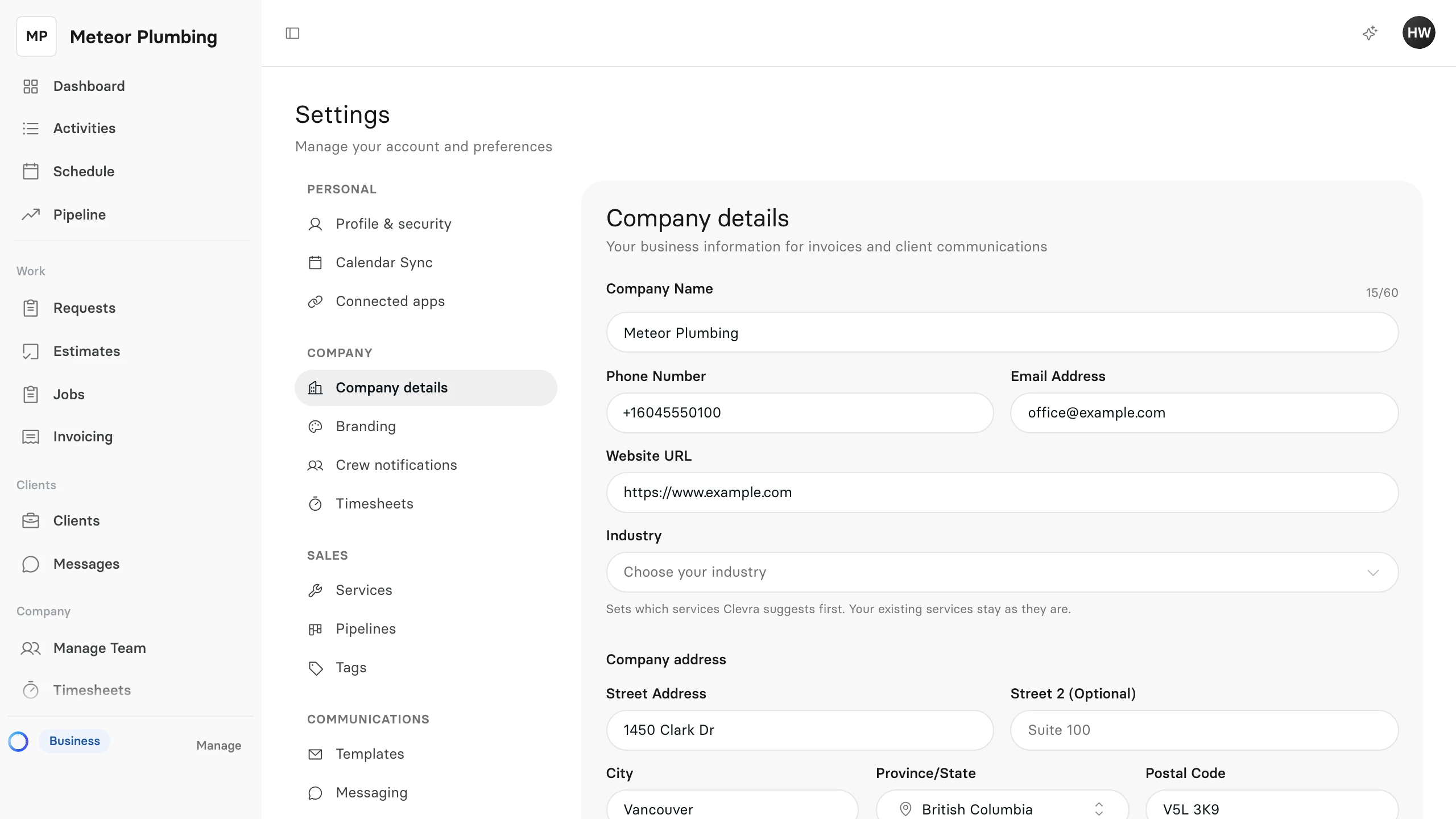
Update your name and contact details
Your clients see these details on invoices and in the messages you send them.
- Change the Company Name if you need to. The new name shows everywhere your company is named.
- Enter your Phone Number, Email Address and Website URL.
- Choose your Industry. It decides which services Clevra suggests first; the services you already have stay as they are.
- Under Company address, fill in the Street Address, City, Province/State, Postal Code and Country.
Set your time zone and formats
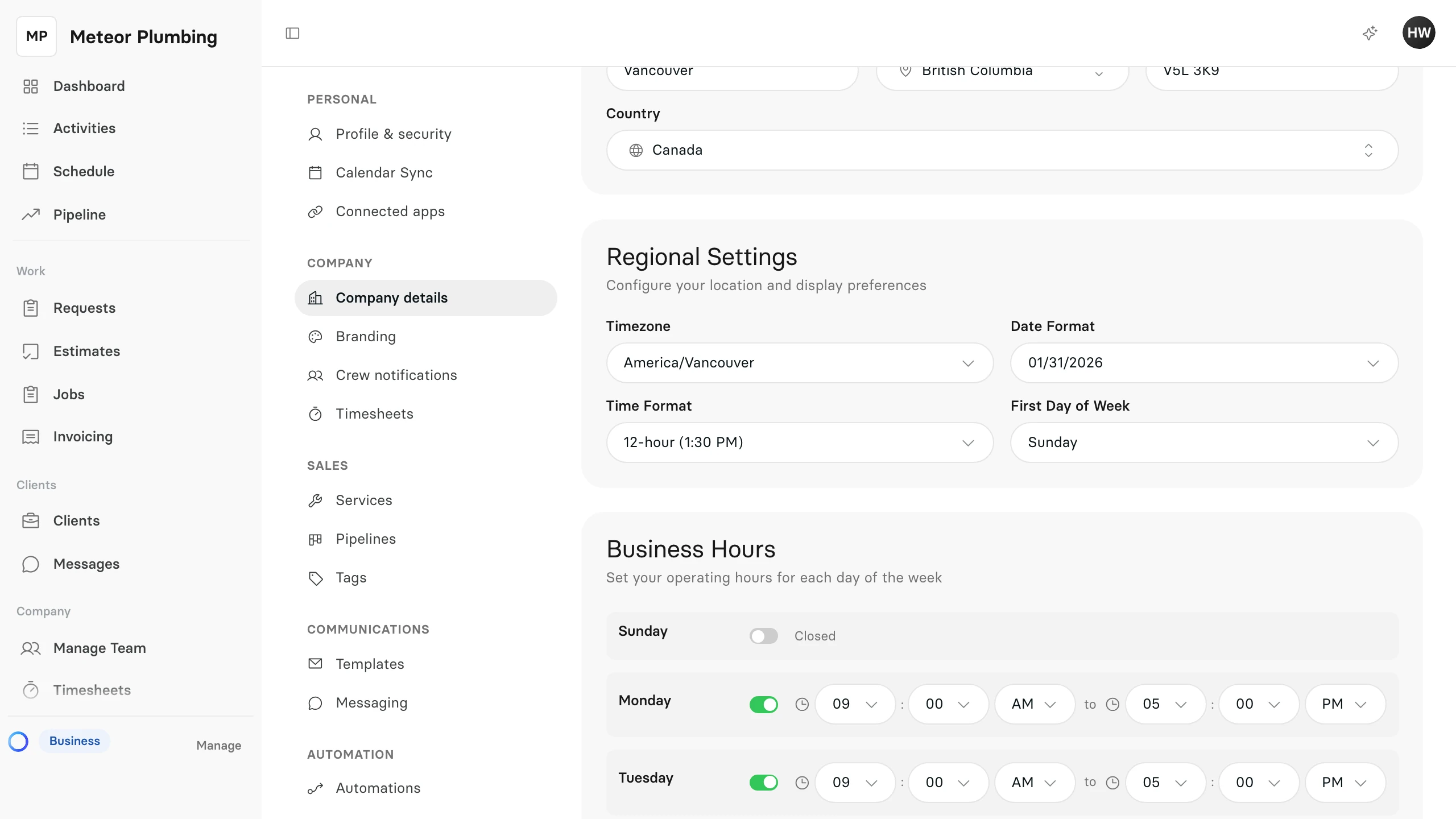
Under Regional Settings:
- Timezone is the clock your company runs on. Dates across Clevra follow the new time zone as soon as you save it.
- Date Format and Time Format set how dates and times are written.
- First Day of Week sets the day your weeks start on.
Set your business hours
Under Business Hours, switch each day on or off and set its opening and closing times. A new company starts open Monday to Friday, 9 am to 5 pm, and closed at the weekend.
Turn on Show on Customer Portal to show your hours to clients in your Customer Portal.
Save your changes
Select Save Changes below Business Hours. One save covers every section above it.
Add your logo
Your logo is shown in your Customer Portal, in your emails and on your PDFs.
- In Settings, under Company, select Branding.
- Under Brand assets, select Add Logo. If you already have one, the button says Change Logo.
- Drag a PNG file into the window, or select the box to choose one. It can be up to 2 MB; a square image of 512 × 512 pixels works best.
- Select Upload.
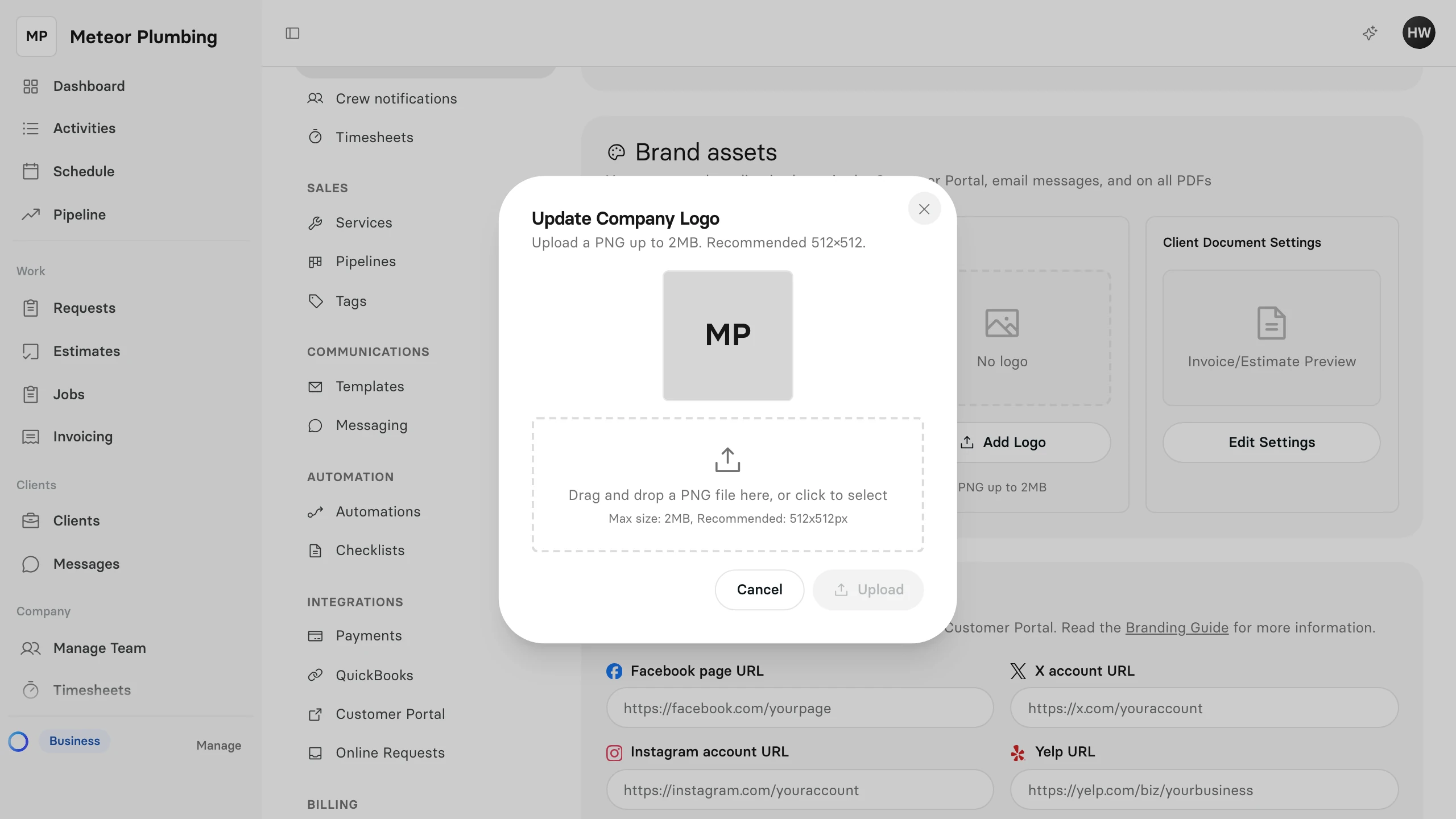
To take the logo off, open the same window and select Remove Logo.