
Review and approve timesheets
See the hours your team logged each day and week, then approve or reject their time.
Updated
On this page
Before you start
Everyone sees their own time in Timesheets. To see the whole team's hours, your role must be Org Admin, Manager, Dispatcher or Viewer. To approve or reject time, it must be Org Admin, Manager or Dispatcher. If you only see your own hours, ask the owner of your Clevra account.
See your team's hours for the week
- Open Timesheets.
- Under Day / Week review, select Week.
- Select Team. Each person gets a row with their hours for each day of the week and a Total.
- Use the arrows on either side of the date to move a week back or forward. Select Today to come back to the current week.
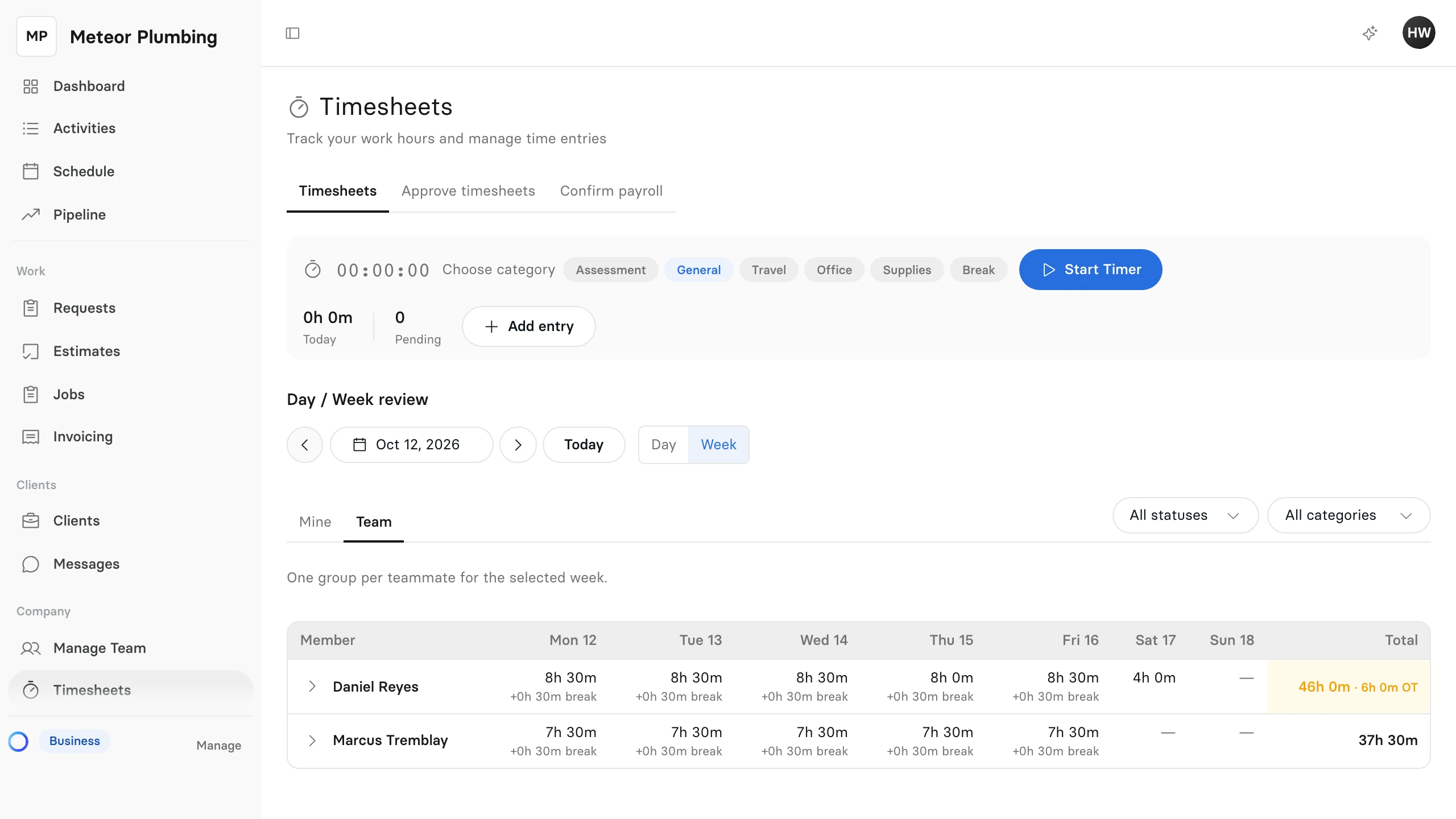
Breaks show under the day they were taken and are not counted in the hours. When someone goes over the weekly overtime limit, their total is highlighted and shows the overtime hours, marked OT.
Check the entries behind the hours
Select the arrow next to a person's name. Their entries for the week open below, grouped by day, each with its times and its status:
- Stopped: finished, not yet submitted.
- Submitted: waiting for approval.
- Approved: accepted.
- Rejected: turned down, with the reason shown under it.
- Edited: changed after it was approved, so it waits for approval again.
- Voided: cancelled. It no longer counts towards the hours.
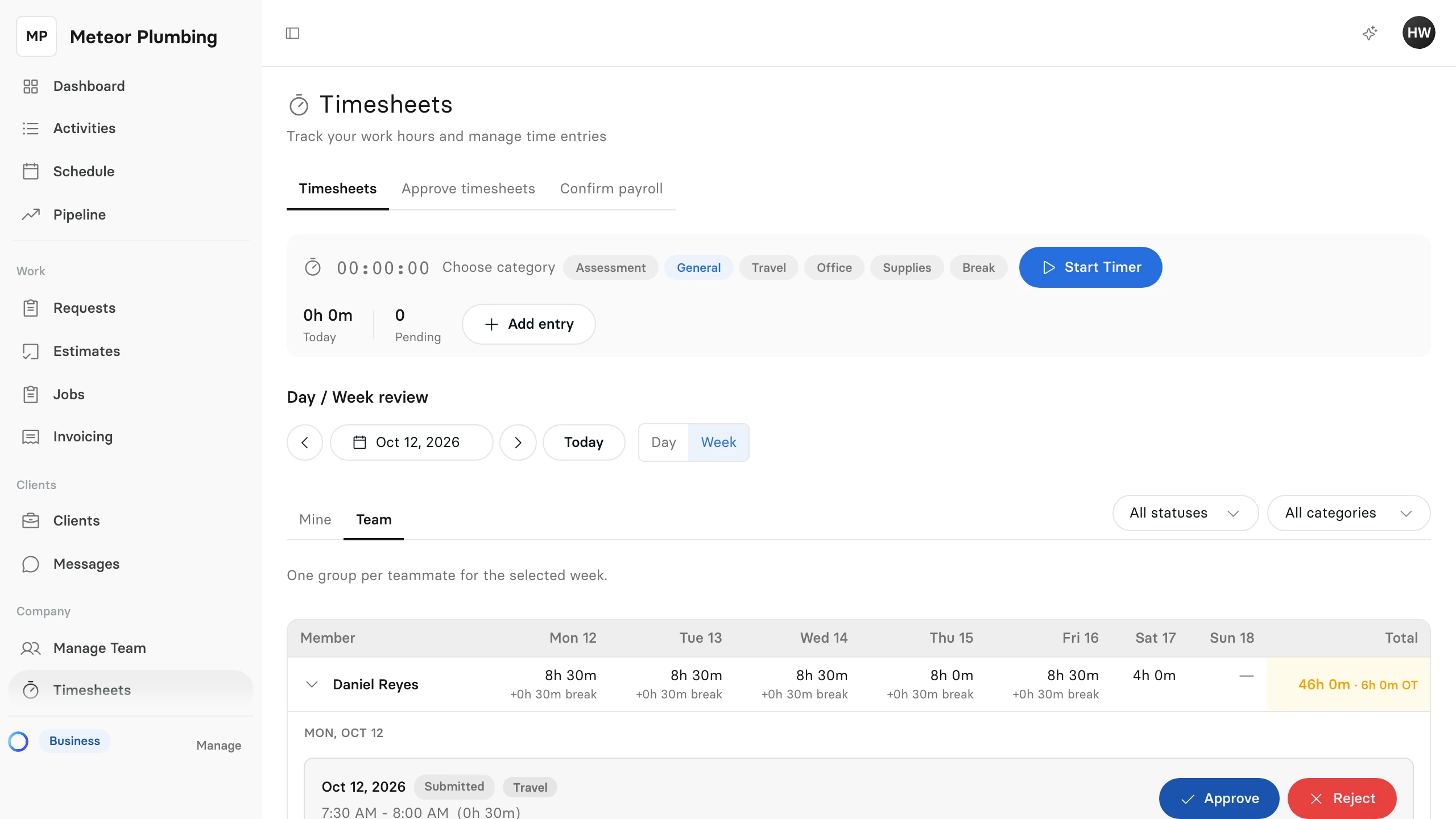
Approve or reject one entry
On a Submitted entry:
- Select Approve to accept it.
- Select Reject, enter a Rejection Reason, and select Reject Entry. The person sees the reason on their entry.
To correct an approved entry, select the pencil on its row, change the times or the Notes, enter a Reason for Edit (Required), and select Save Changes. The entry goes back to waiting for approval.
Approve a whole period at once
- Select the Approve timesheets tab.
- Next to Approve time up to, choose the last day you want to approve.
- Tick each person whose time you want to approve. Each row shows their payable hours and how many entries are pending.
- Select Approve selected.
- Select Approve to confirm.
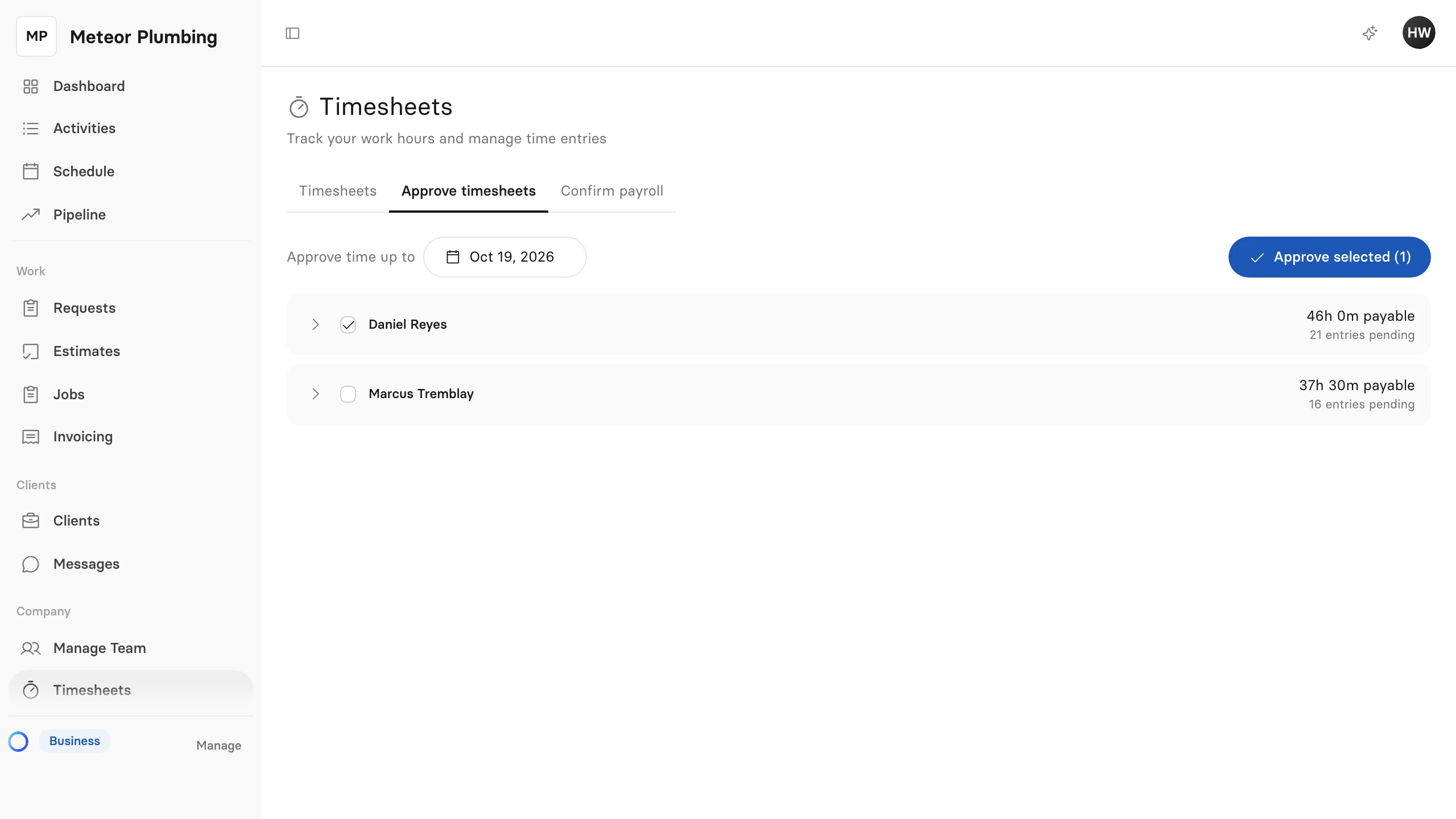
Running, voided, rejected, already approved and paid entries are skipped, and Clevra tells you how many.
Set the overtime limit
Overtime is counted per work week, after 40 hours unless you change it. An Org Admin can change both under Settings, then Timesheets: Weekly overtime after (hours) and Work week starts on.