
See your team's productivity
Compare visits, job revenue and hours for each team member, then look at the time entries and visits behind them.
Updated
On this page
Before you start
These reports are under Insights. To learn who can open Insights, and on which plans, see Run a report.
Hours come from the time your team tracks in Clevra. See Review and approve timesheets.
Compare your team
- Open Insights.
- Under Work reports, select Team productivity.
- Under Range, choose a period. The report starts on Last 30 days.
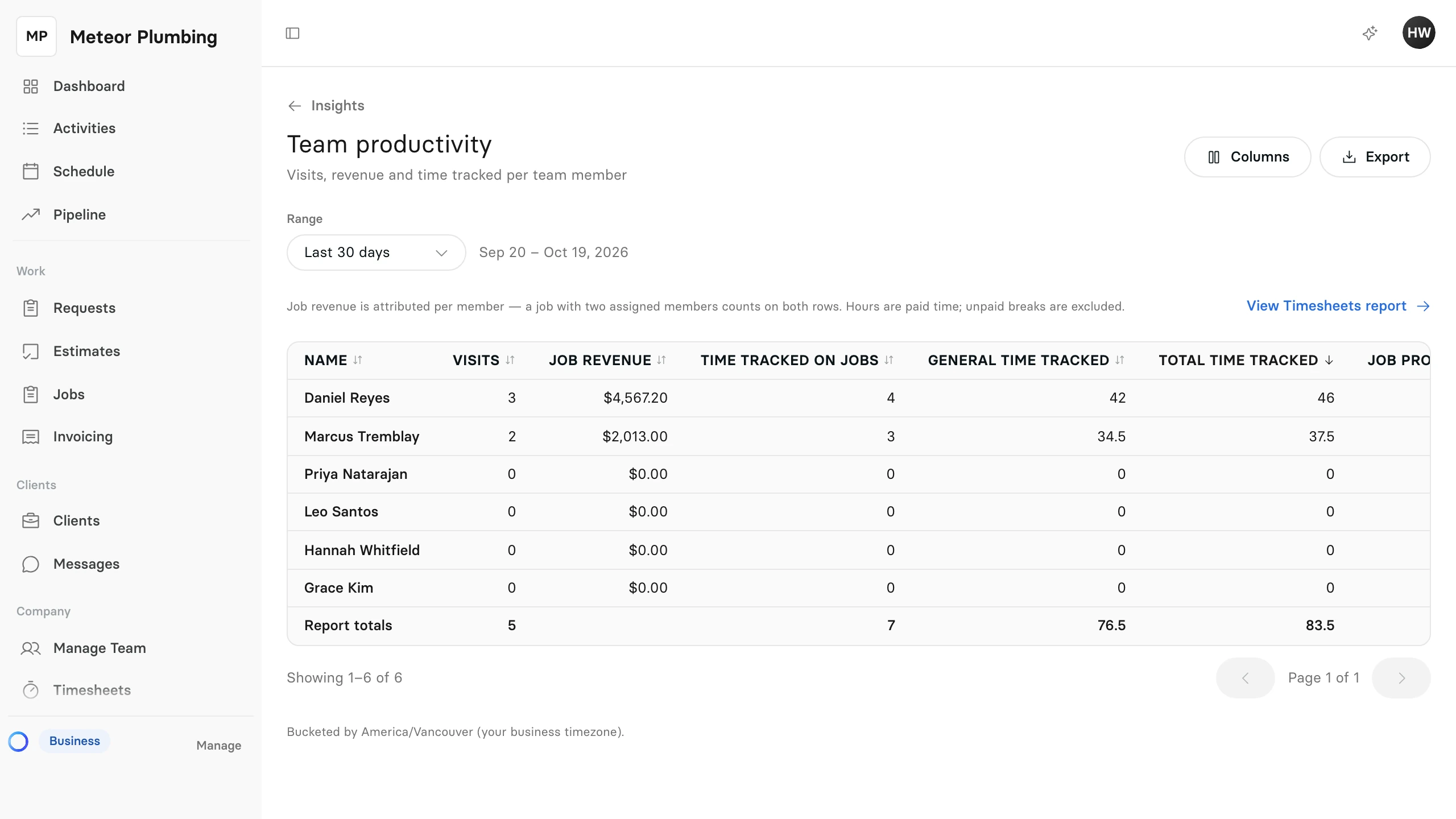
Each team member has one row:
| Column | What it shows |
|---|---|
| Visits | The visits they were assigned to that start in the range |
| Job revenue | The revenue of the jobs those visits belong to, before tax. Only people who can see job costs see this column. |
| Time tracked on jobs | Hours tracked against a job |
| General time tracked | Hours not tracked against a job |
| Total time tracked | Both together |
| Job productivity | Time on jobs as a share of all their time |
Hours are paid time: breaks are left out, and a timer counts once it is stopped. The report shows hours only, never pay.
See the hours behind it
- Below the range, select View Timesheets report.
- To narrow it, choose a person under Team member, or a kind of time under Category.
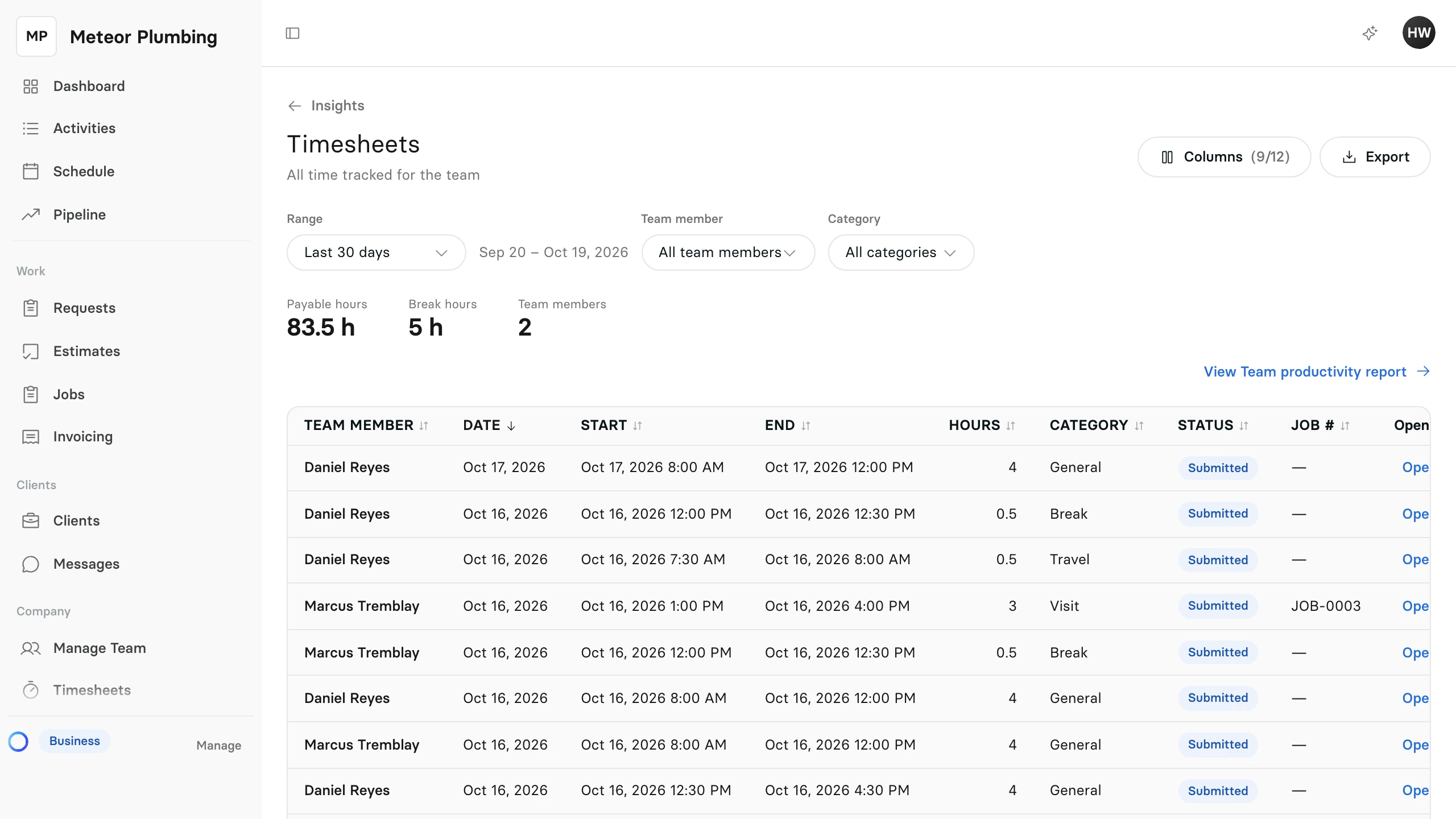
The report lists every finished time entry that starts in the range, with its Team member, Date, Start, End, Hours, Category, Status and Job #. At the top, Payable hours totals the paid time, Break hours the breaks, and Team members counts the people. Voided entries are left out.
See their visits
- Open Insights.
- Under Work reports, select Visits.
- Under Assigned to, choose a team member.
- To see only finished or unfinished work, choose Completed or Not completed under Completed.
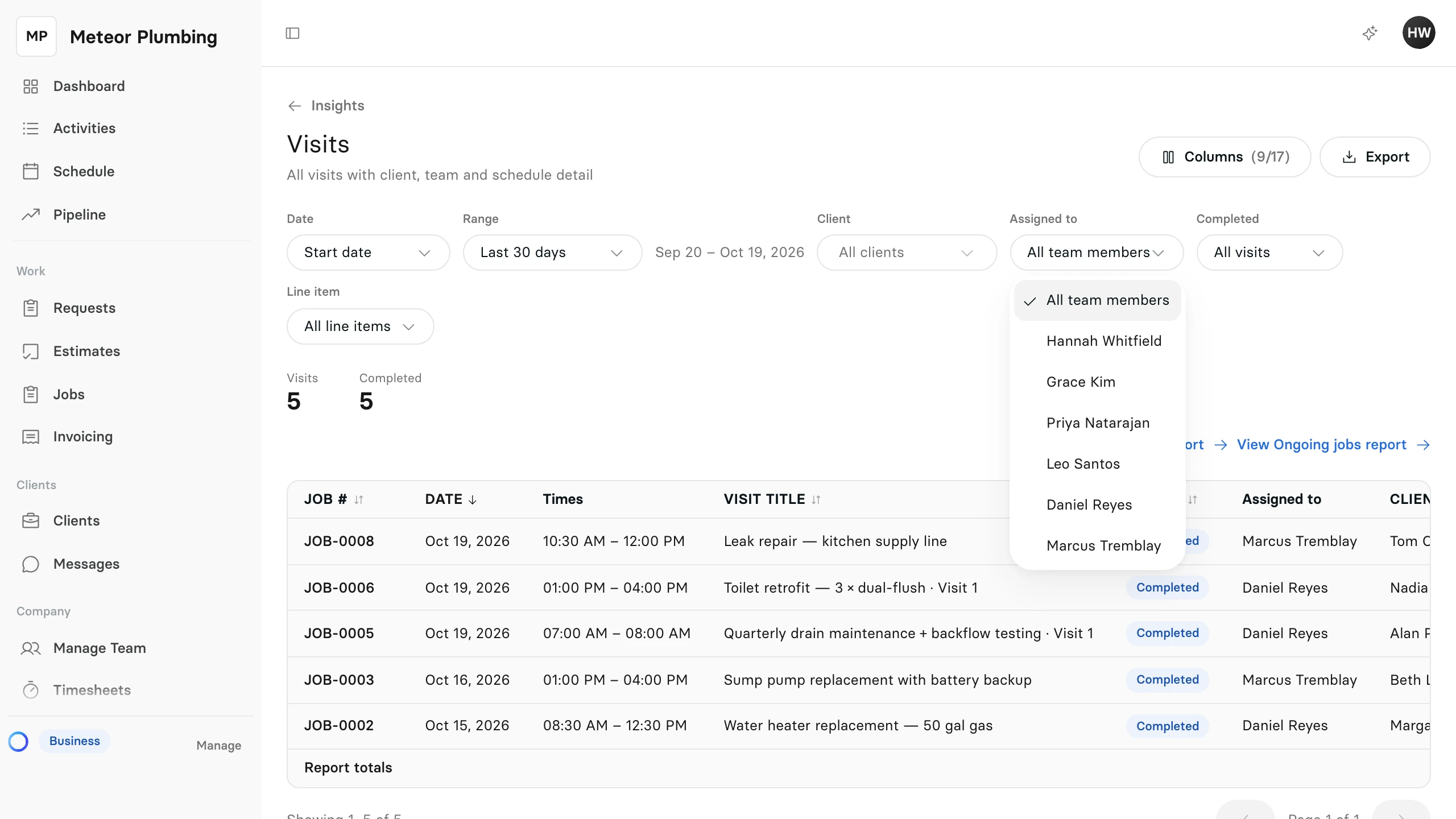
Select Open on a row to go to the visit's job.