
Run a report
Open a report under Insights, set its dates and filters, choose its columns and export it to CSV or Excel.
Updated
On this page
Before you start
Reports live under Insights. They come with the Pro, Business and Custom plans, and with your free trial. On the Free plan Insights shows a lock, and each report offers Unlock Advanced Reports instead.
Insights is open to the Org Admin, Manager and Viewer roles. Dispatchers and technicians do not see it. If you do not see Insights, ask the owner of your Clevra account.
Find the report you need
- Open Insights.
- Select a report. They are grouped into Financial reports, Work reports and Client reports, and each card says what its report shows.
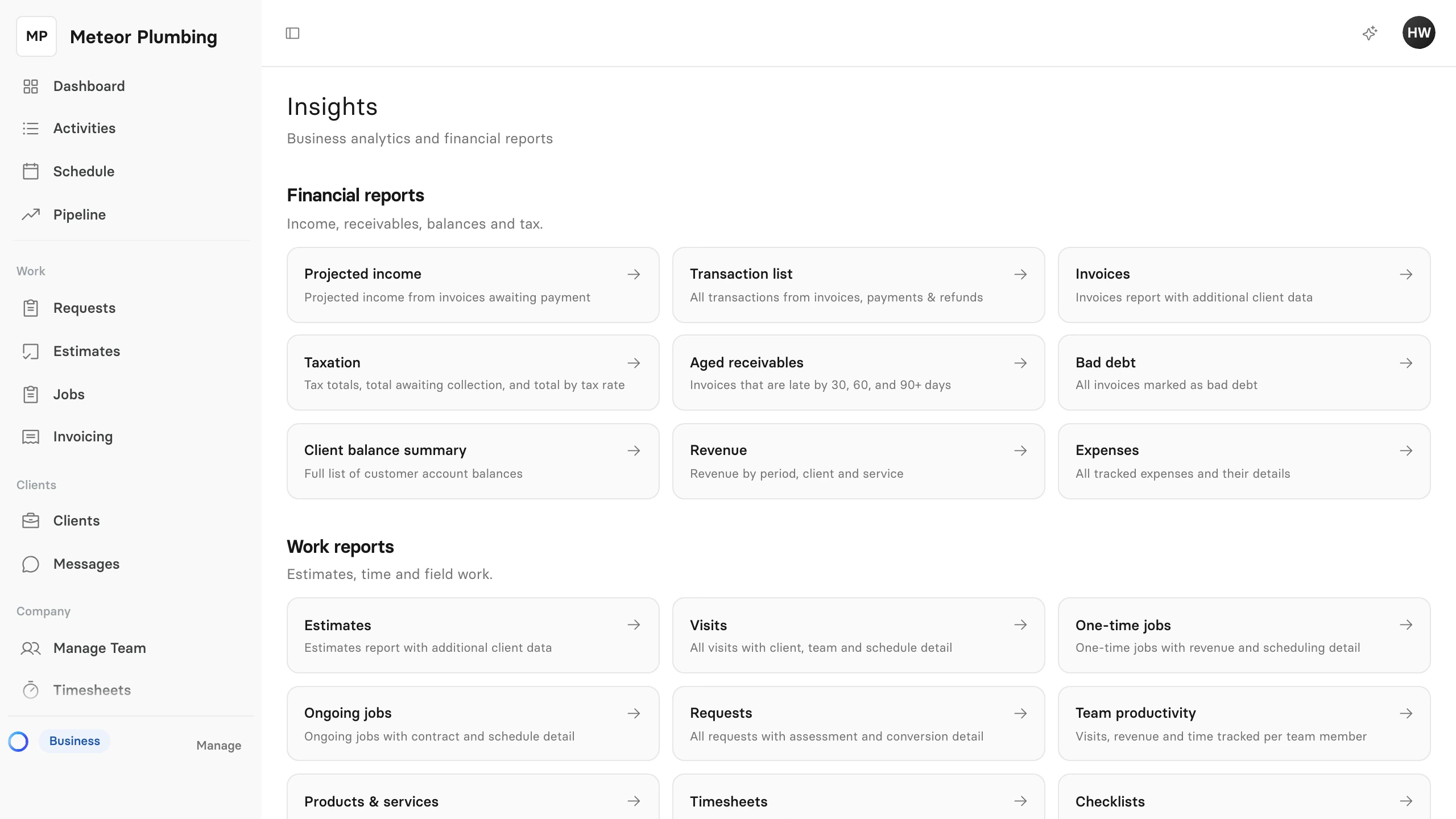
To go back to the list from a report, select Insights above the report's title.
Set the dates
Most reports cover a range of dates.
- Open Range and choose a period, such as Last 30 days, This month or Last 12 months. The dates it covers are spelled out beside it.
- For dates of your own, choose Custom range, then set From and To.
- If the report has a Date box, choose which date counts. In the Invoices report, for example, an invoice can count by its Created date, Issued date, Due date or Paid date.
Some reports have more filters beside the dates, such as Client or Assigned to. Dates are counted in your business's time zone.
Read the report
The top of a report sums it up. In the Invoices report, Invoices issued and Payments collected total the range, and a chart shows both week by week.
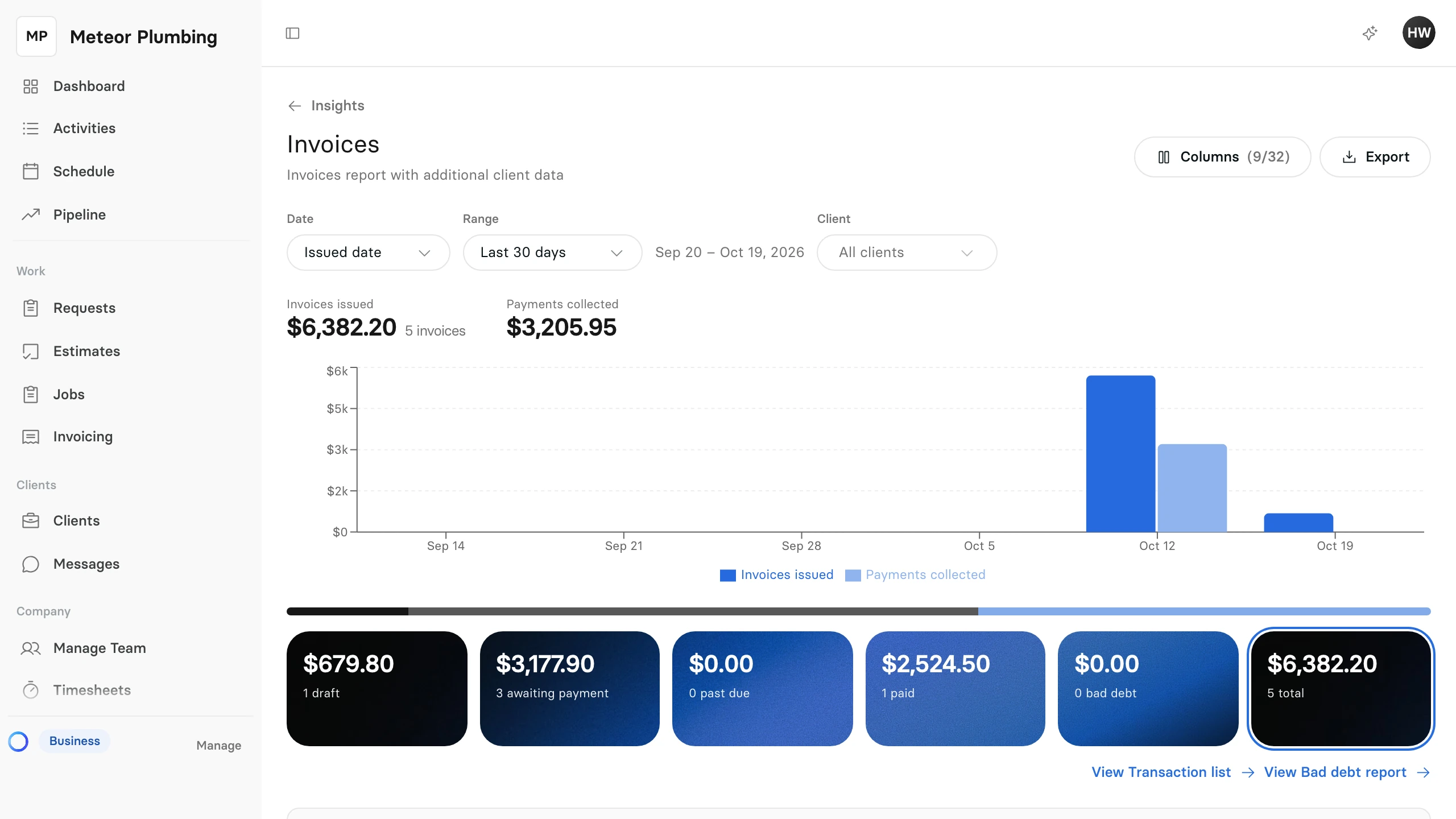
The cards below split the report into groups: for invoices, draft, awaiting payment, past due, paid and bad debt. Select a card to list only its rows. Select the last card, the total, to list them all again.
The table below the cards has a row for each record and Report totals at the bottom.
- Select a column heading to sort by it. Select it again to reverse the order.
- Select Open on a row to go to that invoice, estimate, job or client.
Choose the columns
- Select Columns.
- Tick the columns you want and clear the ones you do not. The first column is always shown.
- To go back to the report's usual columns, select Reset.
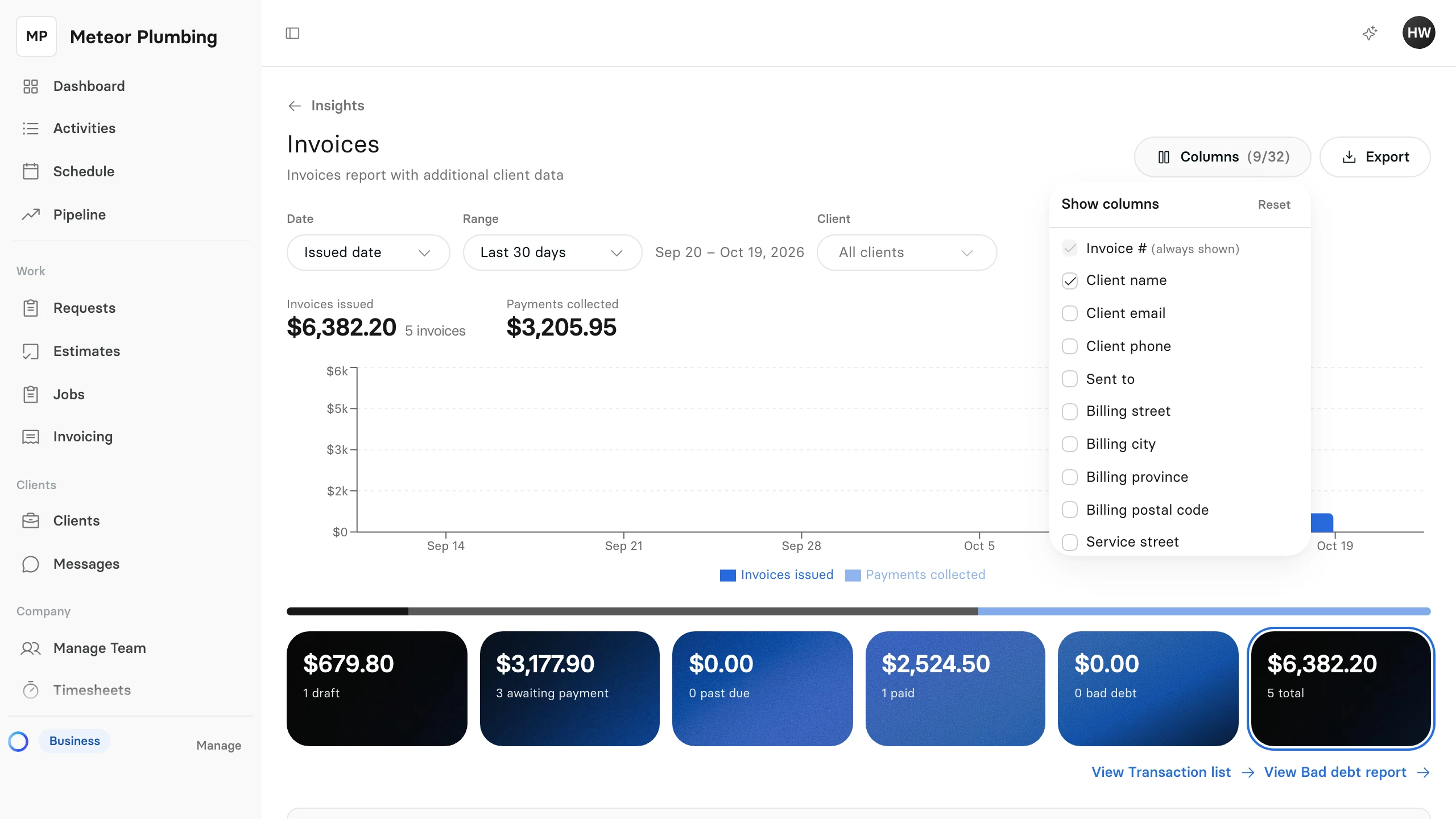
Clevra remembers your columns for each report, in this browser.
Export it
- Select Export.
- Choose CSV or Excel (.xlsx): under All columns for every column the report has, or under Selected columns for only the ones you are showing.
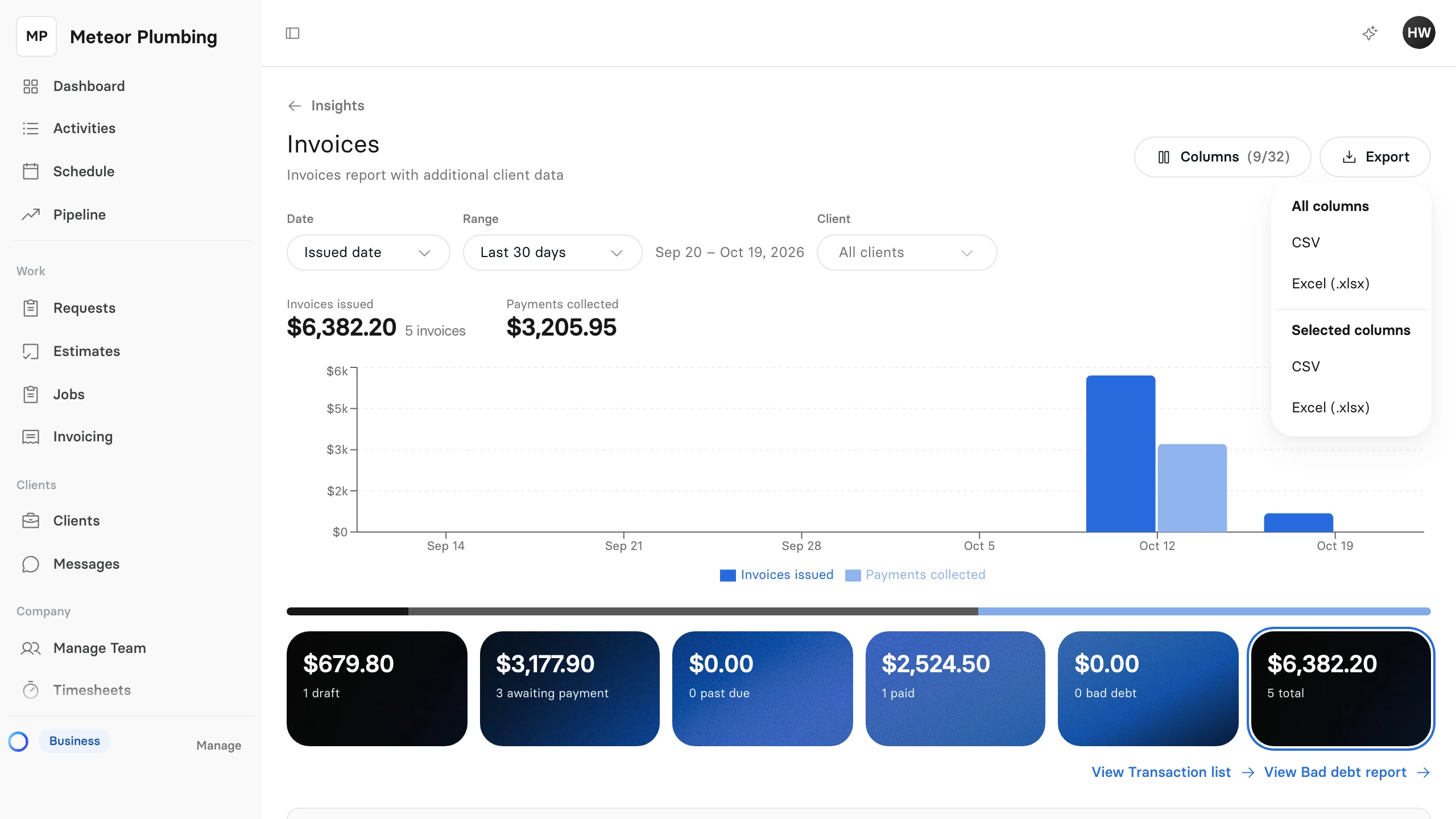
The file holds every row for the dates, filters, card and sort you chose, not only the page on screen.