
Track your revenue
See what you have earned with the Revenue report, and the money still to come in with Projected income.
Updated
On this page
Before you start
Both reports are under Insights. To learn who can open Insights, and on which plans, see Run a report.
Open the Revenue report
- Open Insights.
- Under Financial reports, select Revenue.
- Set the dates in the two date boxes, or select a button such as This Month, This Quarter or This Year. The report starts at 1 January of this year and runs to today.
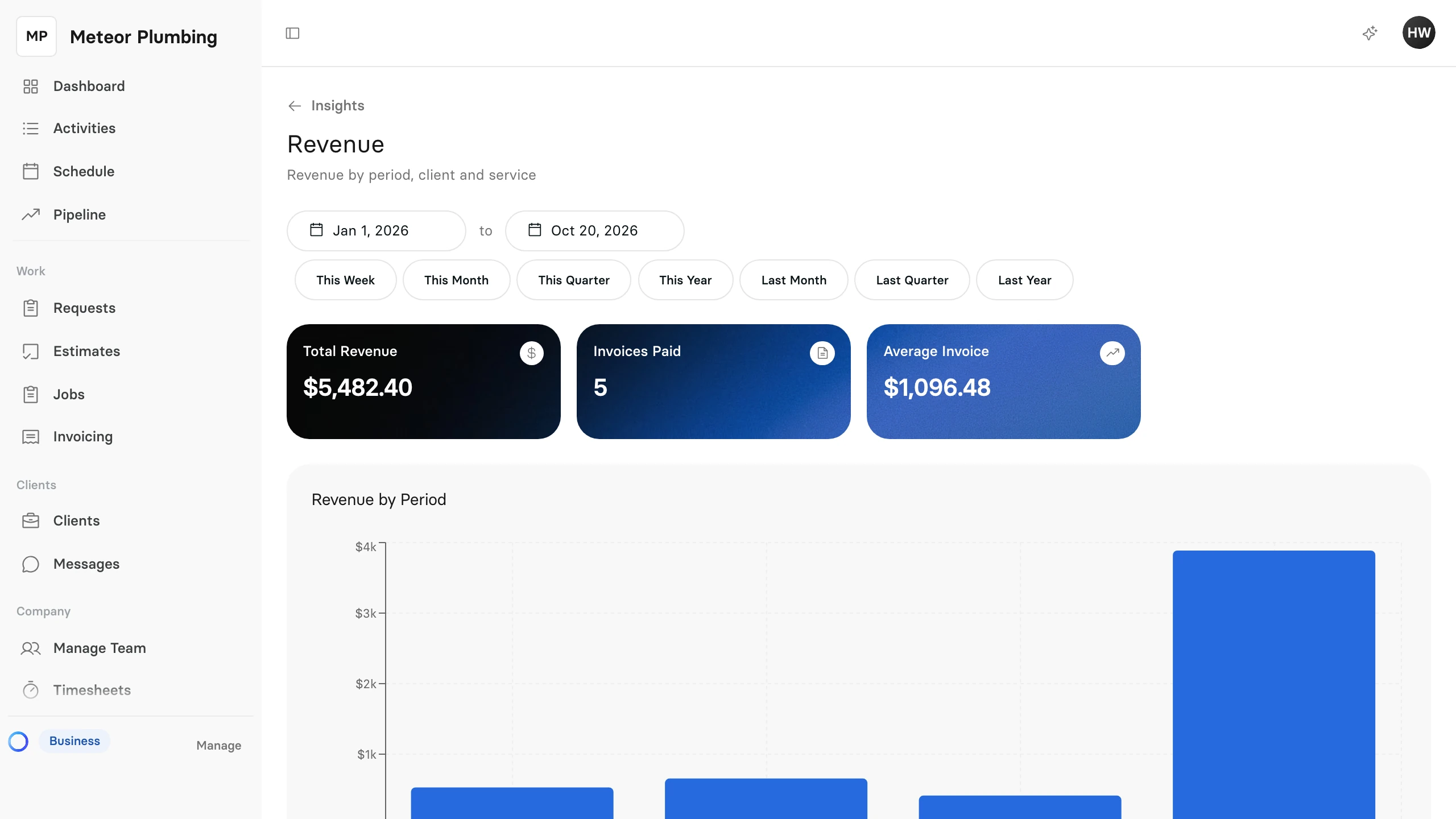
The cards show Total Revenue, the number of Invoices Paid and the Average Invoice. Revenue by Period charts the revenue month by month, and Revenue by Client lists your clients from the most revenue down. Export that list with its CSV and Excel buttons.
What counts as revenue
The Revenue report adds up the totals of your invoices that are Paid or Partially Paid, by the date each invoice was issued. That means:
- An invoice counts in the month it was issued, not the month it was paid.
- A partly paid invoice counts at its full total.
- Invoices sent but not paid yet, overdue invoices and drafts do not count until a payment is recorded on them.
- The figure is the invoice total, tax included.
See the money still to come
- Open Insights.
- Under Financial reports, select Projected income.
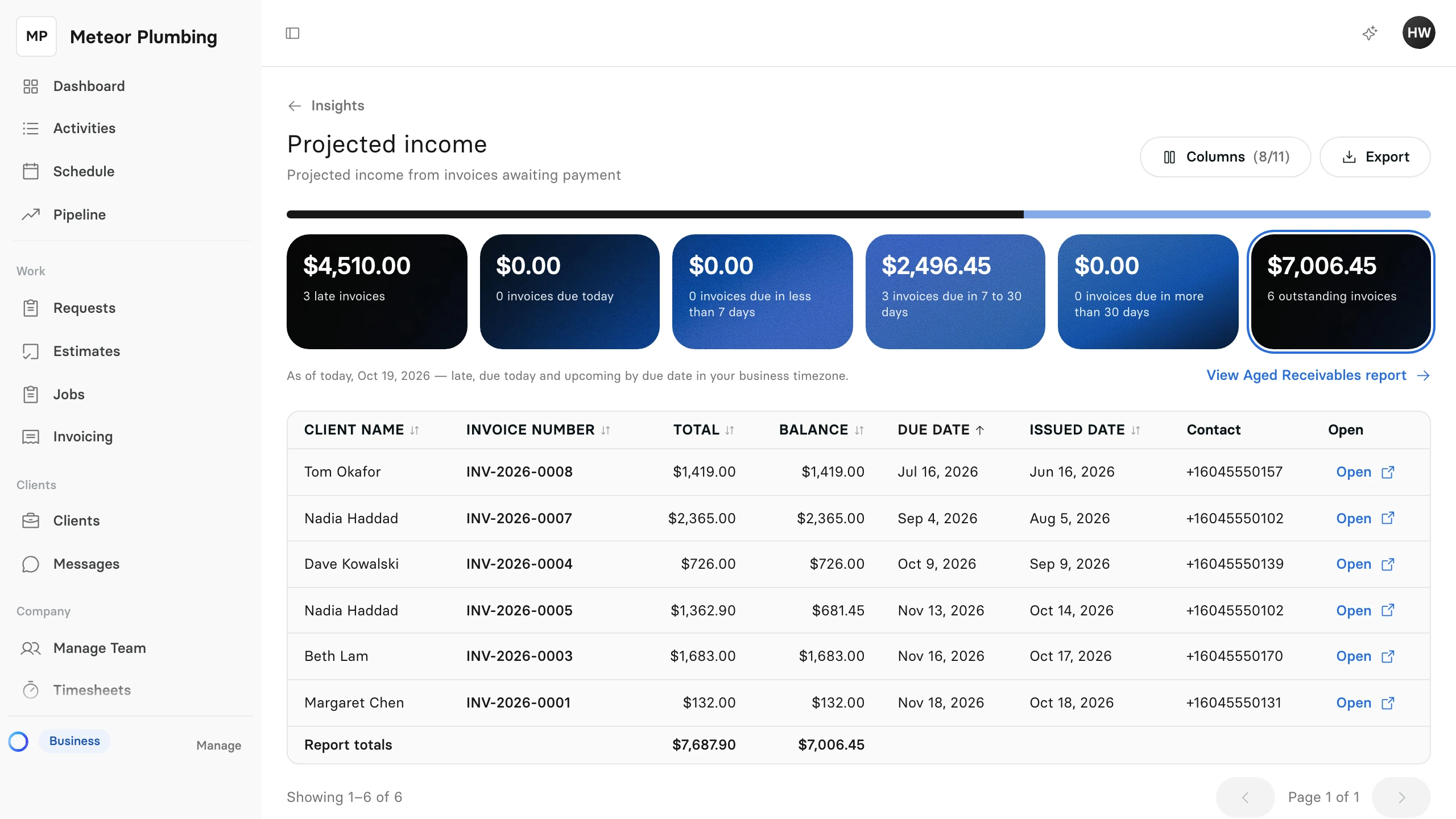
Projected income lists every invoice that has been sent and is not yet paid in full, as of today. The cards group it by due date: late invoices, invoices due today, invoices due in less than 7 days, invoices due in 7 to 30 days and invoices due in more than 30 days. The last card, outstanding invoices, adds them all up.
Every amount is what is still owed on the invoice after any payments. Select a card to list only its invoices, or select Open on a row to go to the invoice.