
Capture a request
Record a client's request for work, book a visit to assess it, and turn it into an estimate or a job.
Updated
On this page
Before you start
You need permission to manage requests. If you do not see the New Request button, ask the owner of your Clevra account.
A request is always for a client. Pick one you already have, or create the client from the same window.
Create the request
- Open Requests.
- Select New Request.
- Choose the Client. For someone new, select Create a new client at the bottom of the list.
- Choose the Property where the work is.
- Enter a Title: what the client is asking for, in a few words. The client and the title are the only details Clevra needs.
- Under Service Details, describe the problem the way the client told it.
- Select Create Request.
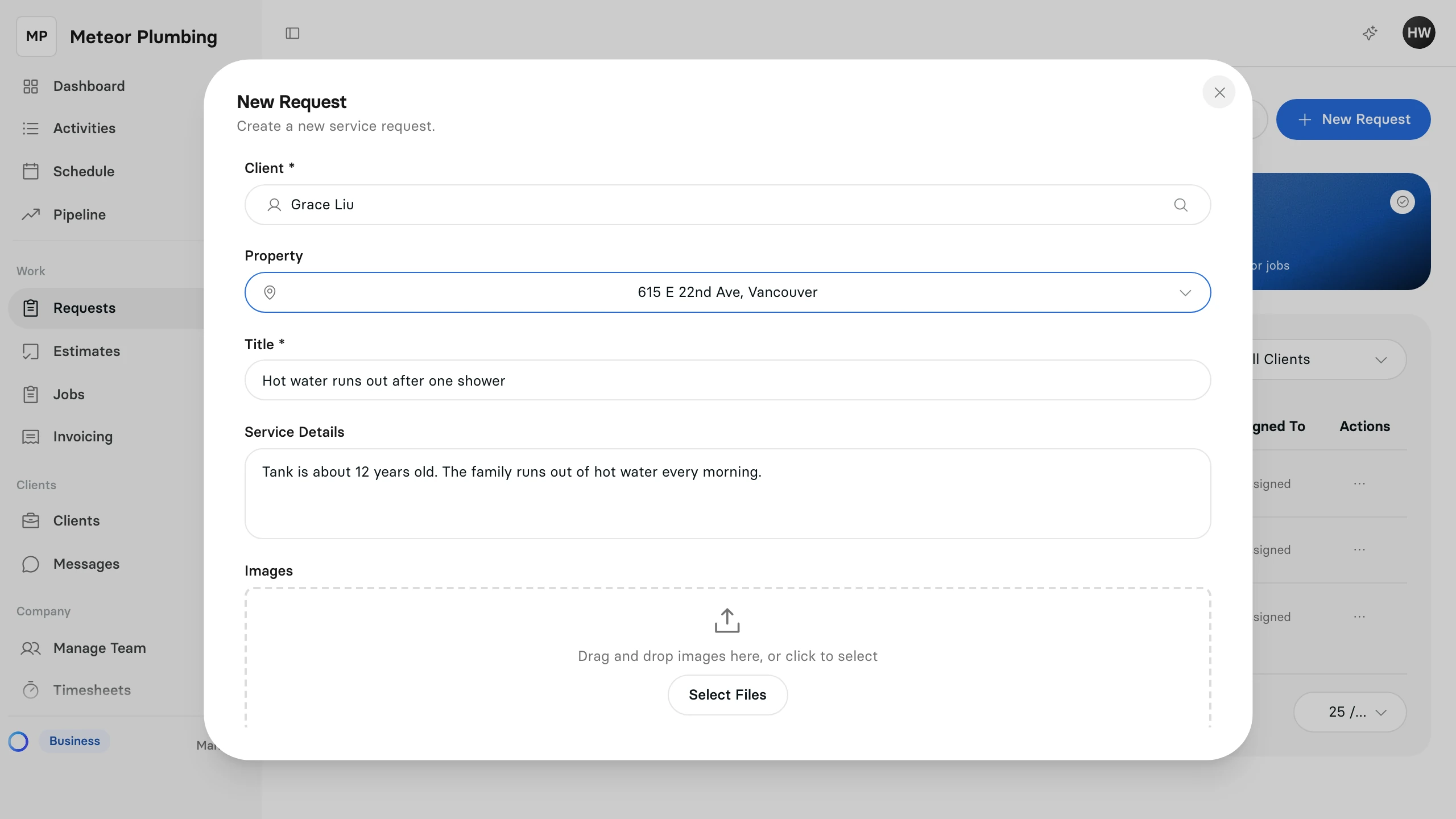
Add any photos the client sent under Images: drag them in, or select Select Files. Set Source to where the request came from, such as Phone or Email. Internal Notes are for your team only; the client never sees them.
The new request appears in Requests with the status New.
Book an assessment visit
When you need to see the work before you price it, book a visit in the same window.
- Select Add On-site Assessment. Clevra suggests tomorrow from 1:00 to 2:00 PM.
- Change the Start Date, Start Time, End Date and End Time if you need to.
- Under Assessment Crew, select who goes.
- Leave Email team when assigned ticked to let them know.
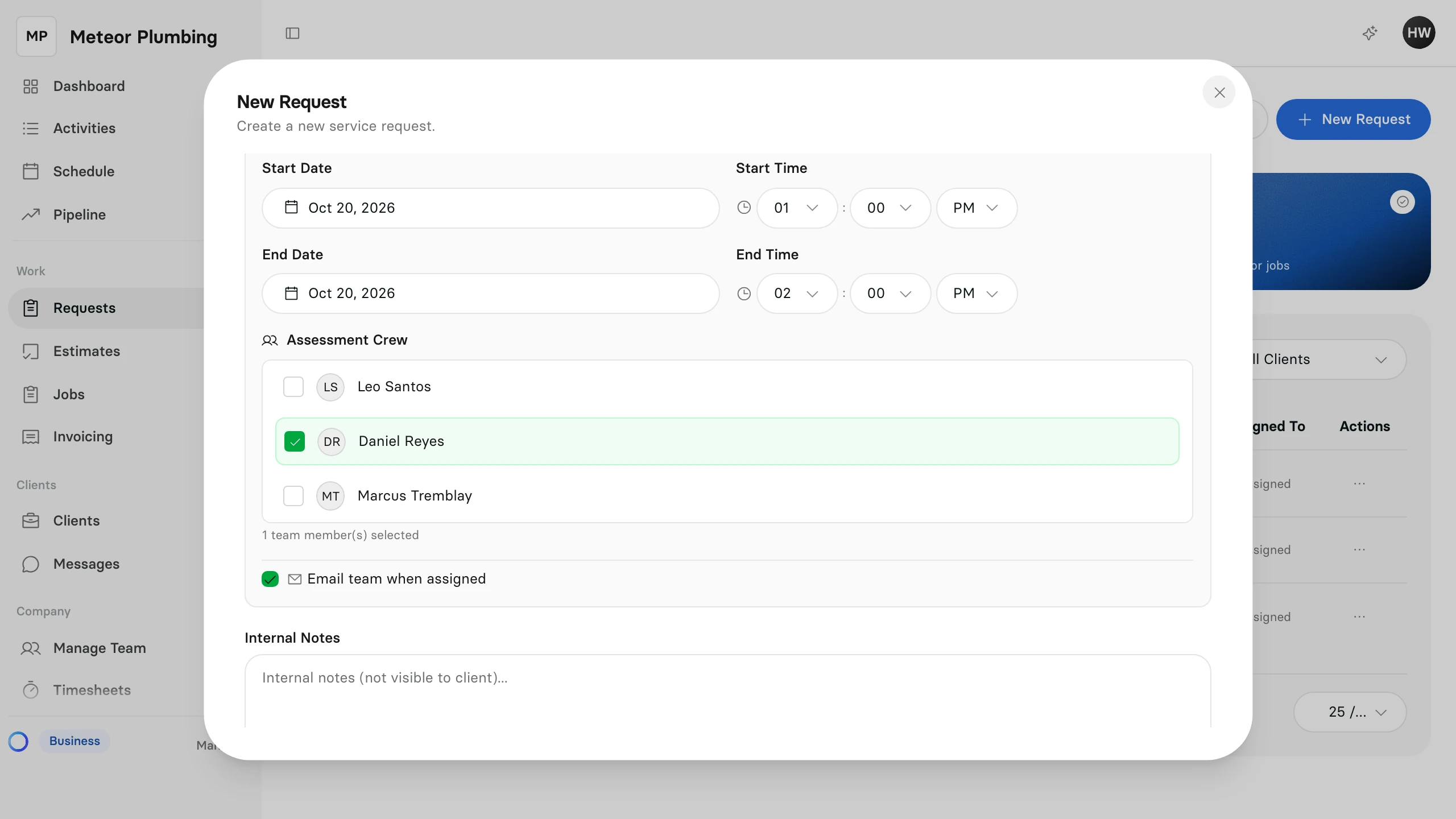
Tick Anytime when the day matters but the time does not, or Schedule later to book the visit afterwards.
Turn it into an estimate or a job
- In Requests, select the ⋯ button at the end of the request's row.
- Select Convert to Estimate to price the work, or Convert to Job when the price is already agreed.
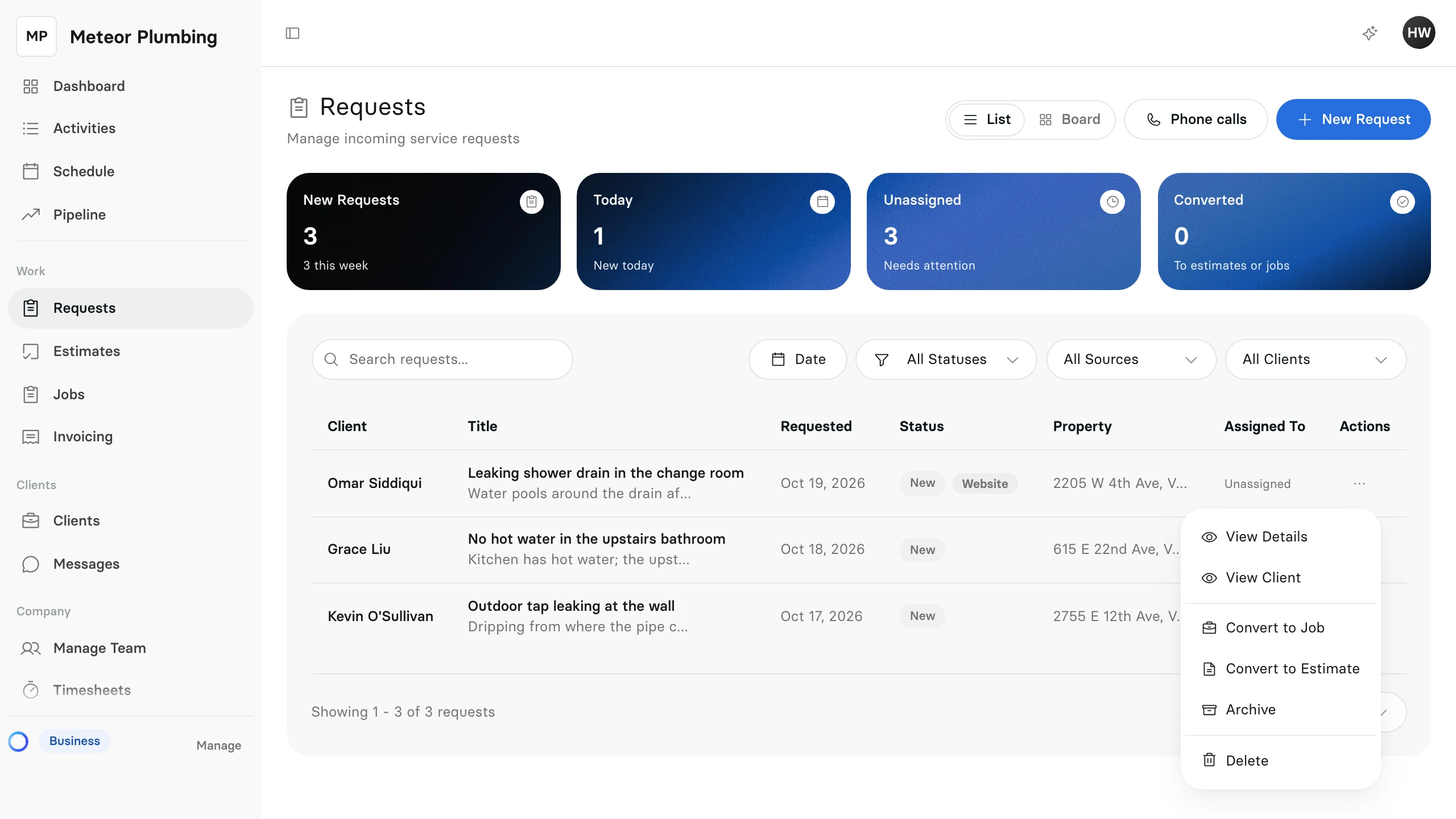
Convert to Estimate opens a new estimate with the client, the title and the service details already filled in. Finish it as in Create an estimate and save it.
Once the estimate or job is saved, the request shows Converted, and the same menu offers View Estimate or View Job.