Answer missed calls with the AI receptionist
Let the AI receptionist pick up the calls your team misses on your Clevra number, see what it files for you, and turn it on.
Updated
On this page
Before you start
Only an Org Admin can turn the AI receptionist on or change its settings. If you do not see AI receptionist under Settings, ask the owner of your Clevra account.
The receptionist answers on your Clevra number, the number your texts come from. It comes with Messaging; if your company does not have one yet, the setup's first step gets you one. The receptionist itself is an add-on to a paid monthly plan: the Subscribe step shows the price and what is included.
Callers are told on every call that they are talking to an automated assistant and that the call is recorded and may be monitored. The receptionist quotes no prices and books no work: it takes the details down and files a request for your team.
How a call is answered
Your business number keeps ringing your phones. When nobody picks up, the call forwards to your Clevra number and the receptionist answers at once.
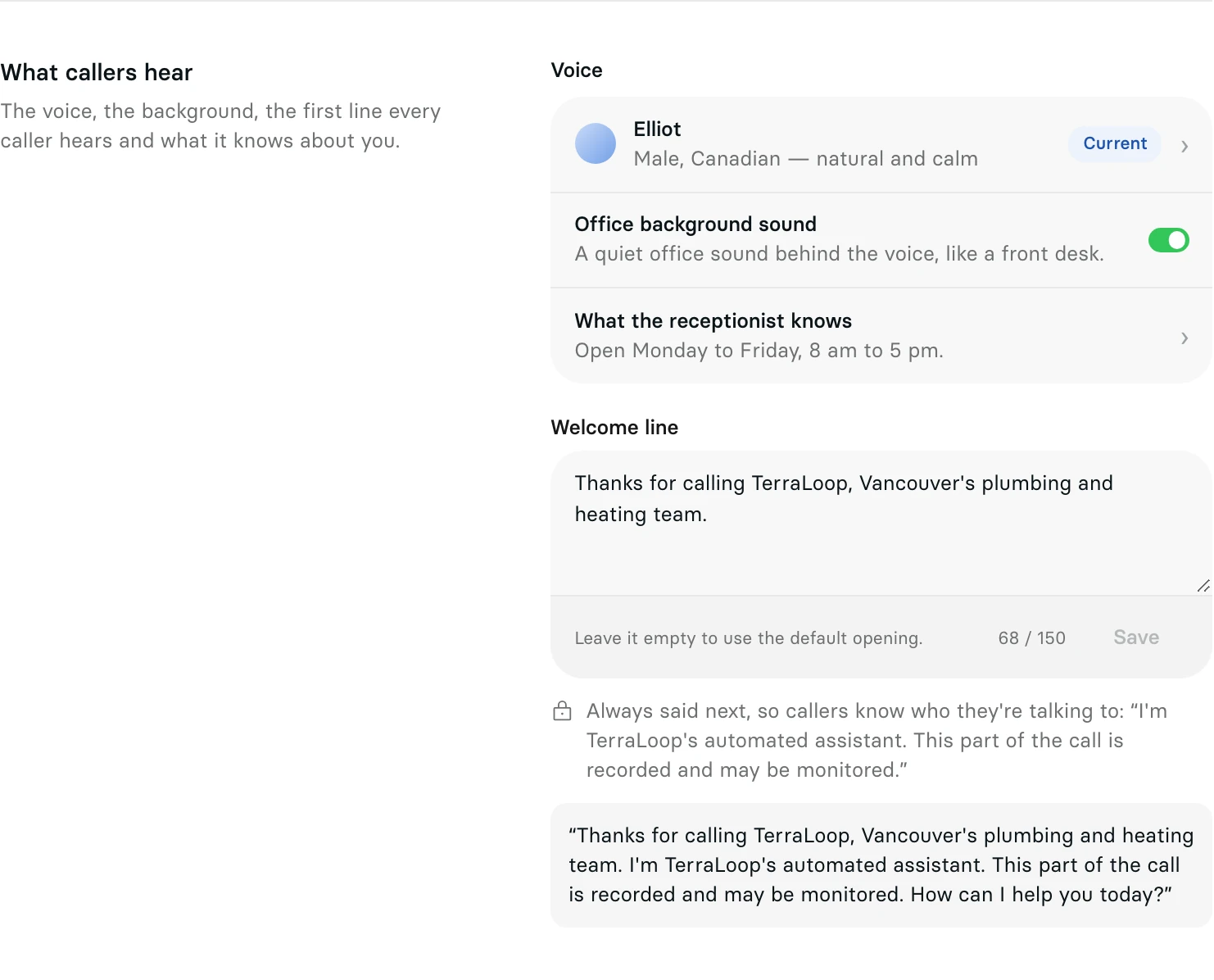
- It opens with your welcome line, then says it is your company's automated assistant and that the call is recorded and may be monitored.
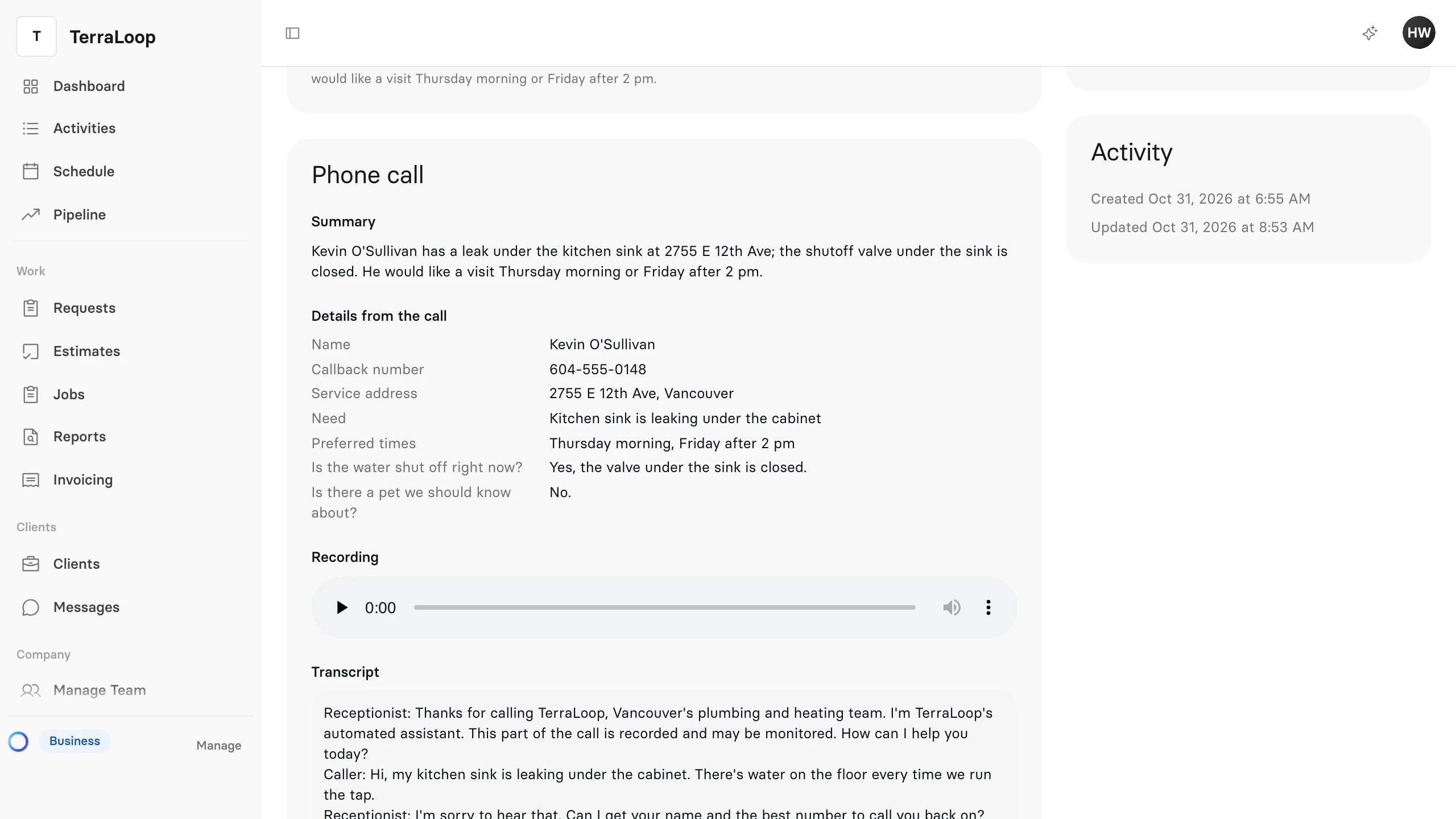
- It takes the caller's name, the best number to call back, the service address, what they need in their own words, how urgent it is and when would suit them. Then it asks the questions you wrote under Questions it asks.
- It reads the details back to the caller before filing them.
- It takes a preferred time but books nothing: someone on your team calls back to confirm.
When a caller describes an emergency, the receptionist takes their name and number, calls your Emergency line, and connects the caller once the person who answers presses 1. If nobody answers within 20 seconds, it tells the caller to call emergency services if they are in danger, and files the request as urgent.
When a caller asks for a person during your business hours and you have set Transfer to a person, it calls that number the same way. Outside those hours, or without a transfer number, it takes a message and says a team member will call back.
What it files
A call with a name, what is needed and a number to call back becomes a request in Requests, with the source AI receptionist. It is attached to the client who holds the caller's number, or to a new client. The request's page carries a Phone call card with the Summary, the Details from the call, the Recording and the Transcript.
A call missing one of those details, or from a number two of your clients share, is held for review in Held requests instead, and Requests shows how many phone requests are waiting. A call about work you already have with that client stays a message for staff and creates no request. Hang-ups, silent calls and recorded sales calls create nothing.
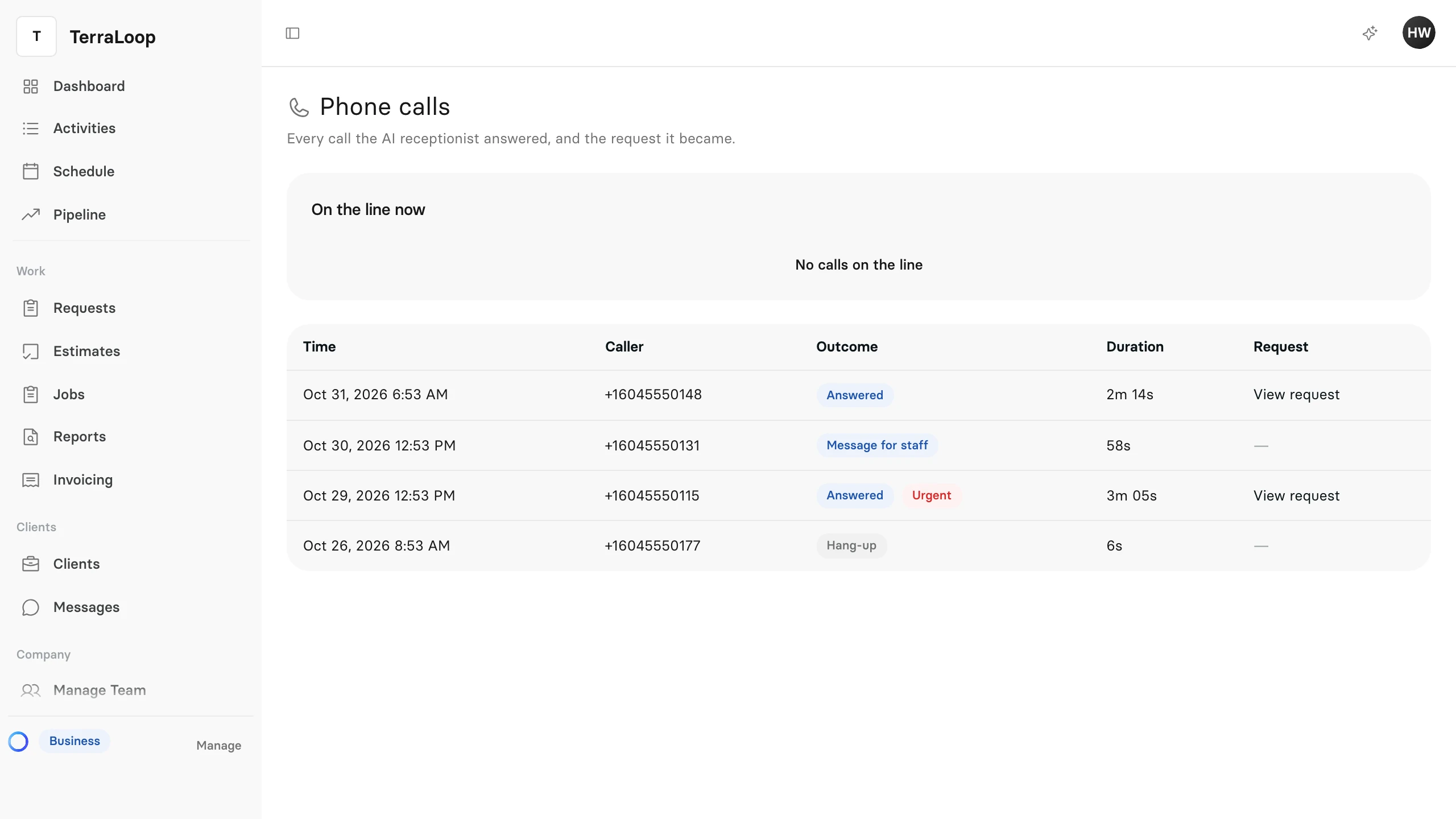
Every call the receptionist answered, whatever came of it, is on the Phone calls list: open Requests and select Phone calls. Each row shows the time, the caller's number, the outcome, the duration and the request it became. Select a call to read its summary and transcript, or to play the recording.
The people who receive new-request alerts get an email for every call about work, with the caller's name, the urgency, a one-line reason and a link, never the transcript. The caller gets no text or email from Clevra. A call also appears on its client's Activity, where you can narrow the view to AI receptionist calls.
Turn it on
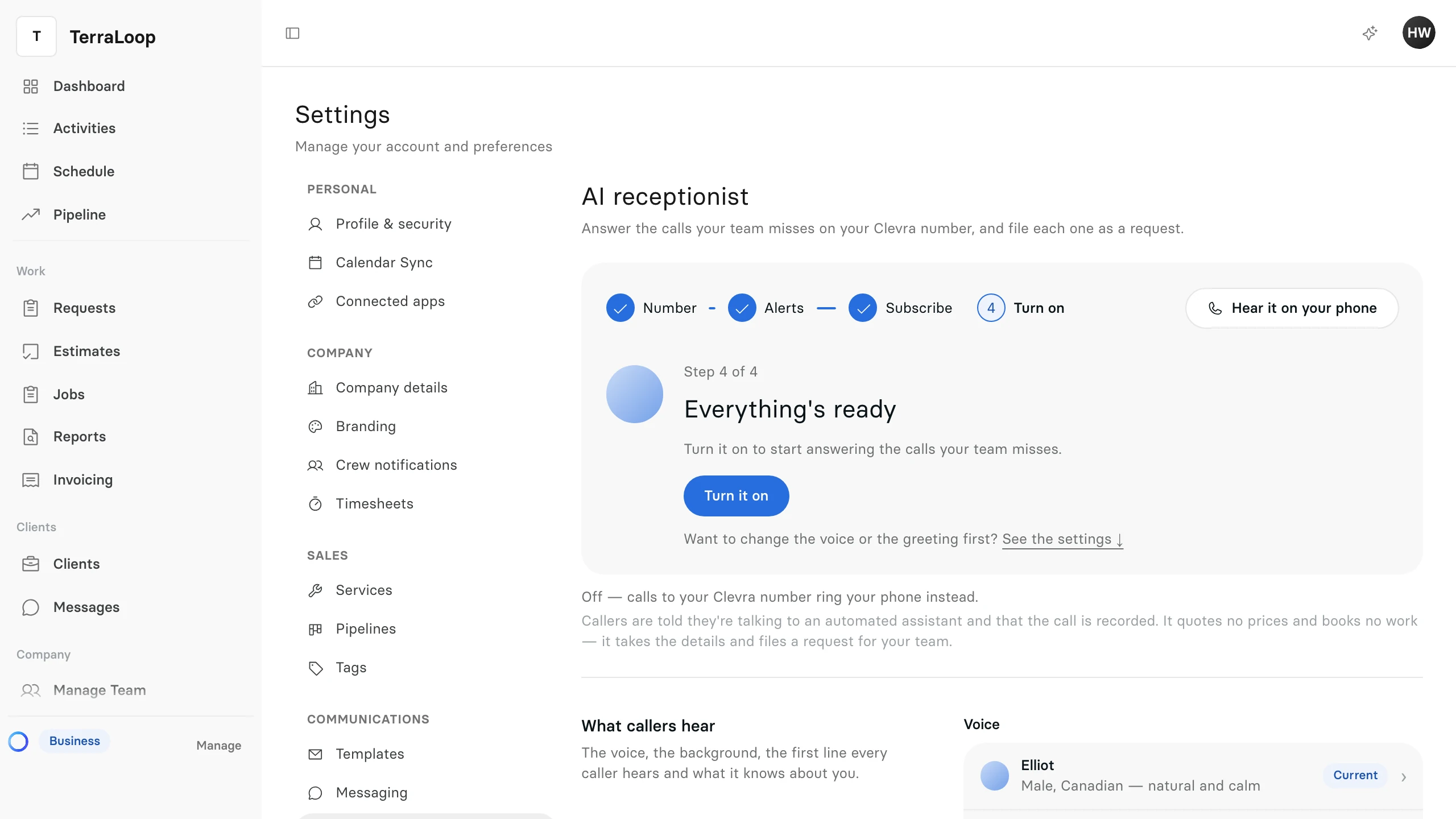
- Open Settings, then AI receptionist.
- The setup card walks you through four steps, Number, Alerts, Subscribe and Turn on, and shows the next one to take. Steps already in place are shown as done.
- Number: if your company has no Clevra number yet, select Get my number and get one in Messaging settings.
- Alerts: choose who hears about new calls. Select Send alerts to me, or Pick someone else.
- Subscribe: the step shows the price, that the add-on is billed with your plan, and today's charge for the rest of the period. Select Subscribe.
- Turn on: select Turn it on.
Forward your business number
Turning the receptionist on connects your Clevra number: calls to it always reach the receptionist. To send it the calls your team misses, forward your business number to it.
- Under Numbers, select Forward your business number.
- Enter the Number and a Label you will recognise, such as Office line.
- Choose how to forward it: Every call, or Only the calls nobody answers.
- Choose the carrier. Clevra shows the codes to dial on that phone to turn forwarding on, and to stop it later.
- Select Done.
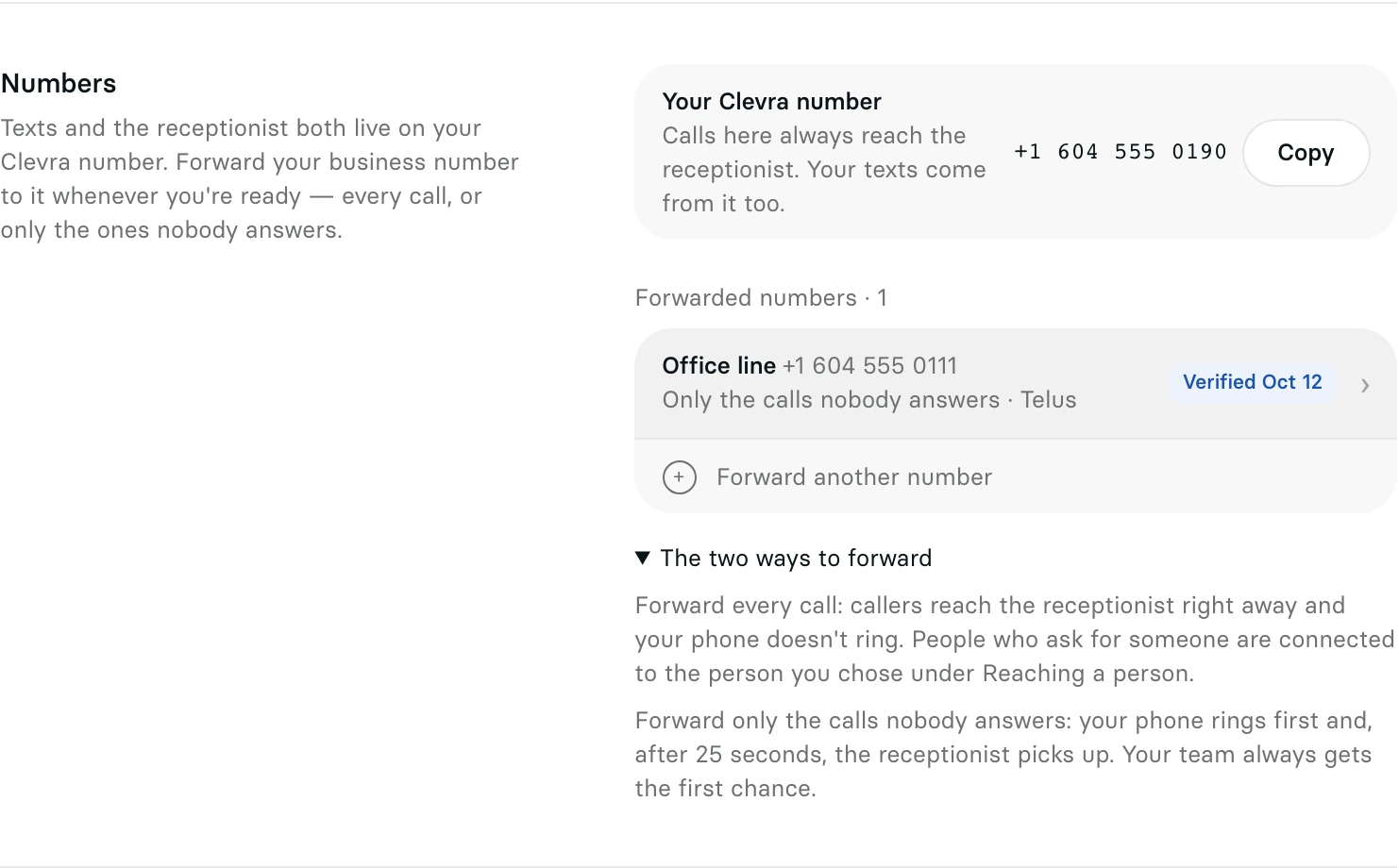
With Only the calls nobody answers, your phone rings first and the receptionist picks up after 25 seconds, so your team always gets the first chance. With Every call, callers reach the receptionist right away and your phone does not ring. A forwarded number shows Not verified until the first forwarded call arrives: call it from another phone and let it ring.
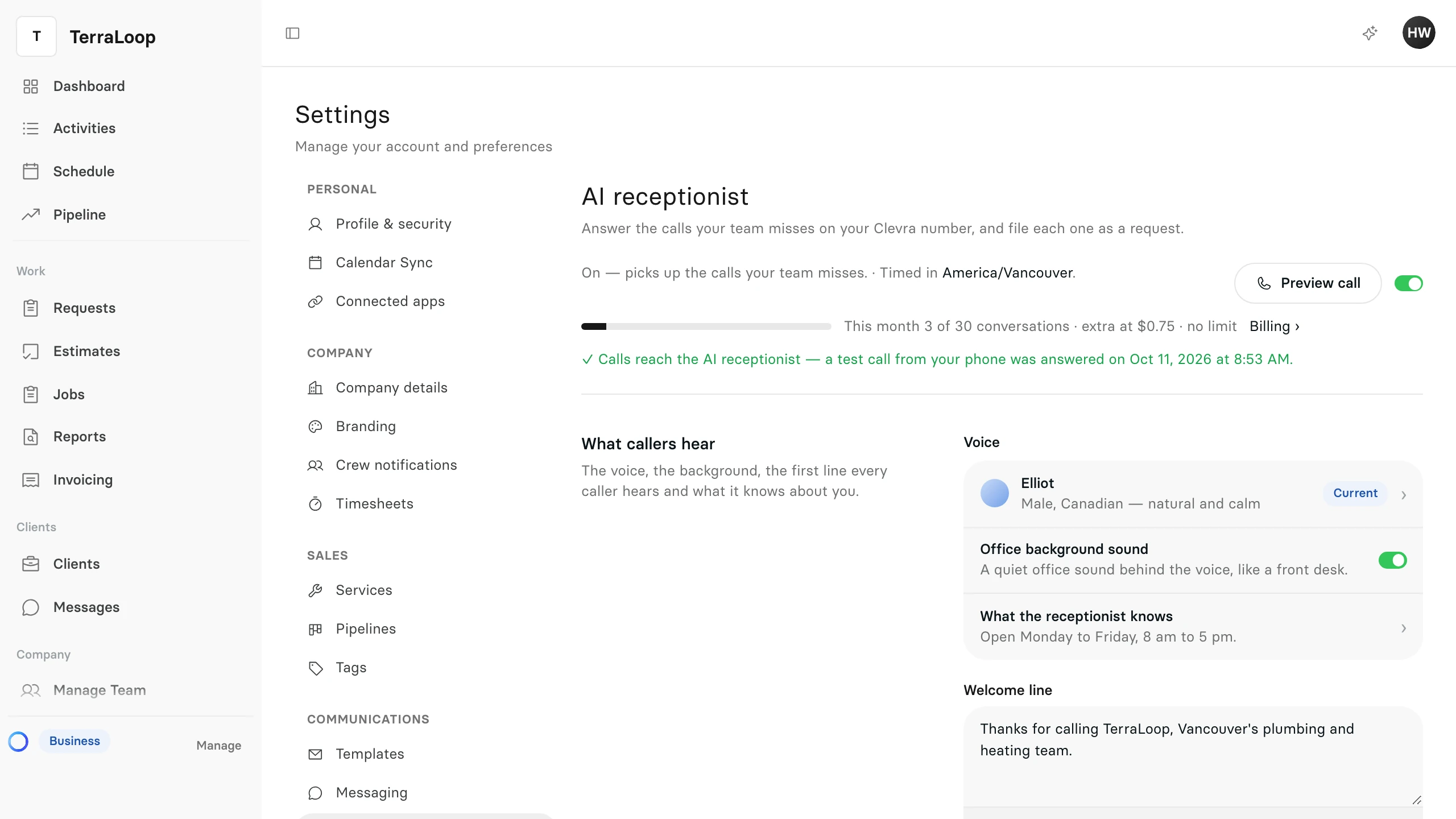
The line at the top of the page says which calls the receptionist answers, and whether a test call from your phone has proven that calls reach it.
Make it yours
Every change applies from the next call.
- What callers hear: choose the voice (each one has a sample you can play), turn the Office background sound off, tell the receptionist about your company under What the receptionist knows, and write your Welcome line. The greeting callers hear is shown word for word beneath it, and Preview call rings your phone with it.
- Questions it asks: up to three questions of your own, asked after the standard ones. The answers land on the request.
- Reaching a person: the Transfer to a person number, used during your business hours, and the Emergency line. The business hours come from Company details.